
Published on Visokio (http://kb.visokio.com)

Home > DataManager

DataManager

DataManager 


The DataManager workspace also allows you to define any sequence of  transformational operations by dragging Operations blocks onto the workspace.  Operations blocks are also accessible from the Main Toolbar Data > Operations menu and are fully documented here.


Sources

Sources 

Omniscope allows you to import data from a wide variety of data sources. Each source allows you to fine-tune how the data will be imported. 


File

File

The File source lets you import data from a local file.

Options

File selection

The file selection section allows you to choose what file you want to import. Click on the "Browse" button to select a file. 

Omniscope supports the following file types:  

  • Visokio Omniscope file formats (IOK, IOM, IMF).
  • Comma Separated Values (CSV).
  • Tab Separated Values (TSV).
  • Plain text files (TXT).
  • Excel workbooks (XLS, XLSX).
  • Outlook (PST).
  • Quattro Pro Spreadseet (QPW).
  • Web access logs (LOG).
  • XML data files (XML).
After you have selected a file the options for configuring how you want to import the file will be displayed. These options vary depending on the type of file you have selected. 
Omniscope file options 
The following options are available when you select a Visokio Omniscope file type (IOK, IOM, IMF):
  • File password. Enter the password used to open the file. Leave blank if the file has no password.
  • Fields. Select which fields you want to import.
  • Formula recalculation. If the selected file has formulas fields this option determines how the data in these fields is recalculated. Select "None" to disable formula recalculation altogether. Select "Formulas that change over time" to only recalculate formulas with values that can change depending on when the formula was calculated. Select "All" to recalculate all formula values.
  • Data refresh. If the selected file was obtained from an external data source this option determines whether the data is refreshed. Select "Disabled" to disable data refresh altogether. Select "Automatic (if detectable)" to refresh only if the data source has changed. Select "Forced refresh" to refresh whenever the data is imported.
Text based file options

The following options are available when you select a text based file type (CSV, TSV or TXT): 

  • Type. Allows you to select the structure of the data inside the file. Select "Text, delimited" if each field in the data is delimited by a specific cell separator character. For CSV files the default separator is the "," character and for TSV files the default separator is the TAB character. Select "Text, fixed width" if each column of the data is specified a set number of characters. If you have a data in a text file where the first column has exactly 10 characters, and the second column has exactly 8 characters and so on, then you should select this option. Select "Text, XML" if the data inside the file is XML. Not all XML files use the "XML" file extension.
  • Select table data. Click this button to identify the header rows, data rows and columns inside the selected file. For more information see the Table data selection help page. PENDING.
  • Has header. Select this option if the file has one or more header rows.
  • Header rows. Enter the first and last header rows.
  • Data rows. Enter the first and last data rows. Leave the last row blank if you want to read all rows.
  • Skip empty data rows. Select this option if you want to skip all data rows with no data.
  • Auto-recognise. This option allows you to configure whether Omniscope will attempt to recognise numbers and dates. Leave these options unchecked to import the data as text.
  • Auto-convert to empty. If this option is selected the following will be converted to empty values (nulls): "null", "None given", "Unknown", "Not known", "N/A".
  • Cell separator. "Text, delimited" type only. Enter the field separator character. 
  • Cell quote character. "Text, delimited" type only. PENDING.
  • Encoding. Select the encoding of the file. If you see any unusual characters in the data you can try changing this to UTF-8 or another encoding.
  • Locale. PENDING.
  • Missing field prefix. Enter the field name prefix used when a missing field is encountered. If your data contains 3 missing field names and you select the prefix "Field" the missing fields will be named "Field 1","Field 2" and "Field 3".
  • Break points. "Text, fixed width" type only. Click this button to select the break points in the data. The breakpoints define the number of number of characters in each column. For more information see the Set break points help page. PENDING
Excel file options.

The following options are available when you select an Excel file type (XLS, XLSX). 

  • Password. Enter the password used to open the file. Leave blank if the file has no password.
  • Import. Select "Single worksheet" to import one worksheet only. You can choose which worksheet you want to import from the dropdown below. Select "Appended worksheets" to select one or more worksheets to append into a single data-set. You can choose which worksheets you want to append in the dropdown below.
  • Reader. This option allows you to select how you want Omniscope to read the Excel data. Your choice should depend on whether you have Excel installed, how much data you are trying to read and the content of the data. If you are experiencing problems with one reader you can try switching to a different reader. The "Excel as CSV" reader will open the file in Excel and the force Excel to save the data as a CSV file before importing it into Omniscope. This reader is normally the best method for reading the data as it uses Excel to interpret any formulas inside the workbook. You must have Excel installed to use this reader. If this option is selected and you don't have Excel installed the "Omniscope" reader will be used instead. The "Excel direct" reader will open the file in Excel and then communicate directly with Excel to obtain the data. You must have Excel installed to use this reader. If this option is selected and you don't have Excel installed the "Omniscope" reader will be used instead. The "Omniscope" reader is the only reader that can be used if Excel is not installed. It uses Omniscope to decode the file format. This reader requires more memory and may not work with certain formulas.
  • Table data, Has header, Header rows, Data rows, Skip empty data rows, Auto recognise, Auto convert to empty. For more information on these options please refer to the documentation in the Text based file options section of this page.


URL

URL

The URL source allows you to import data from a remote file.

Options

File selection

The File selection section allows you to select the URL you want to import. You should enter the web address in the "Address" text field. Examples of valid addresses include: 

  • http://www.mysite.com/example.iok [1]
  • ftp://ftp.mysite.com/public/example.txt 

Select the "Requires authentication" option if the server requires a username and password in order to access the data. 

The URL source supports all of the file types available in the File source. After selecting a file the configuration options for the selected file type will be shown. For more information on these options please see the File source help page. PENDING.


Database table

Database table

The Database table source allows you to connect to and import data from a relational database.

The connection details section of the panel allows you to select and connect to a Database. Omniscope supports a wide variety of different Databases. If your database isn't on the list then you should select ODBC or JDBC (Advanced).

After selecting a Database you need to configure the information required to connect to that database. Different databases require different sets of information. For example, when connecting to Microsoft SQL Server you should select a driver and the host, port, host (optional), database name (optional) and authentication information.

After entering the required connection information click on the 'Connect' button.  If there are any problems connecting to the database an error message will be displayed. Successfully connecting to the database a list of the tables available to import will be displayed in the Table selection dropdown.

Advanced users can choose to import data using a custom SQL statement rather than by simply selecting a table. 


List of values

List of values

The List of values data source allows you to enter one or more values that will be converted into a single-column Omniscope dataset. You can then use this as an input into any operation or feed in the DataManager workspace.

The List of values source is particularly useful as an input to a feed, such as the Twitter search or Yahoo search, where you want to supply a pre-defined set of search values.

Options 

  • Field name. Enter the name of the field containing the list of values that you want to supply.
  • Values. Enter the values. Each value will appear as a separate row in the data.
  • Value separator. Enter the separator for each value. The default separator is the newline character (represented using "\n"). If the newline separator is used each value should be entered on a separate line. You can only define one separator character.


Sequence of values

Sequence of values 

The Sequence of values source generates a single-column Omniscope dataset containing a discrete sequence of values between a start and end value. You can use this source as an input into any operation or data feed.

Options

  • Type. Allows you to determine the type of sequence generated. You can choose to generate  a number sequence or a date sequence.
  • Start. Defines the first value in your sequence.
  • End. Defines the last value in your sequence.
  • Increment. Determines the difference between each value in your sequence.
  • Field name. The name of the field in the resulting dataset that contains your value sequence.


File metadata

File metadata  

The File metadata source generates an Omniscope dataset that contains file metadata related to a subset of files in a specific directory. Each row in the dataset represents a different file.

Some examples of file metadata include: 

  • The name of the file.
  • The size of the file in bytes.
  • The last modified date.
  • (Image files only) The size of the image. 

Options

  • Folder. Specifies the directory that contains the files you want to scan. You can choose to include the files in all subfolders by selecting the Include subfolders option.
  • File type. Allows you to specify the types of files you want to scan. You can choose to scan All files, Images or a Custom list. If you choose the Custom option you can specify the filenames of the filenames you want to include. So, for example, if you want to scan all JPG and TXT files you should enter '*.JPG,*.TXT' in the filename filter.
  • Tags in filenames. 

Batch append files

Batch append files 

The Batch append files data source allows you to append the contents of a set of data files within a designated folder.  

Options

The File selection section allows you to configure which files you want to append. 

  • File type. Allows you to select the types of files that you want to import. All file types supported by Omniscope are listed here. When you select a particular file type, the configuration options for that file type are displayed, so if you choose the 'Microsoft Excel file type' then the configuration options specified (worksheet name, header/data rows etc) will be applied to all workbooks matching the selection criteria. If you need to import files requiring different import configurations you should consider using mulitple Batch append sources or importing the files individually. Most of the options available in the File and URL sources are available in the Batch append source.
  • Folder. Allows you to select the directory containing the files that you want to append. At the present time the Batch append source does not allow you to select FTP directories.
  • Scan sub-folders. Determines whether files in sub-folders inside the selected directory will be scanned. If unchecked only files in the selected directory will be appended. If checked files in the selected folder and all child folders will be appended.
  • All/part of filenames. Allows you to filter which files you want to append. Whenever you change the file type the filename will change to reflect your selection, so if you choose the 'Excel workbook (Excel 2007)' file type the filename will automatically change to '*.xlsx'. You can enter multiple filters by separating each one using the ',' character. So for example if you want to append all .TXT and .DAT files you would enter '*.TXT,*.DAT'.
The Source field section determines whether Omniscope will create an additional field in the dataset that contains the file each row of data was obtained from. You can enter the name of the file and choose whether to remove the file extension. This feature is particularly useful if you are appending a series of files containing timestamps inside their filenames.


Lookup data

Lookup data 

The Lookup data source allows you to pick an Omniscope lookup dataset. These datasets provide useful information that can be combined with your existing data sources to provide additional data. Examples of lookup datasets include postcode and country location data.


Demo data

Demo data

The Demo data source allows you to pick a demo dataset. You can use the demo data to test the functionality of the operation, feed and publisher blocks. 


OLAP cubes

OLAP cube.

The OLAP cube data source provides connectivity to MDX-compliant multi-dimensional data secttructures (cubes) such as Microsoft SSAS and other cubes. 

Omniscope DataManager workspace currently supports direct connections to Microsoft Analysis Services and some other MDX-compatible mutli-dimensional cube structures from other vendors.

In order to use the OLAP connector you will need to configure HTTP access to the MDX server. Most OLAP sources support this, however you may need to configure access on the server.

The following link  [2]provides details on configuring HTTP access to SQL Server 2008 Analysis services. Information on configuring access to other cube providers can normally be found on the internet or by speaking to your system administrator. 

Visokio made the decision to provide access cubes via MDX because it provided a generic solution, allowing connection to several different providers. The downside of this solution is that it does require some pre-configuration and data retrieval may be slower than a direct connector. Visokio intend to implement direct connectors for OLAP servers such as Microsoft SSAS in the future. This development will be dictated by demand from clients.

Options

The connection details section allow you to specify how to connect to the OLAP server.   

  • Server URL. Enter the name or IP address of the OLAP server.
  • Username/Password. Enter the authentication details that you use to connect to the OLAP server. Once you have entered the connection details click the "Connect" button. If the connection was successful a list of OLAP cubes, dimensions and measures will be downloaded and available for selection. 
The cube data section specifies what data you want to retrieve from the OLAP server. You can only select this data once you have successfully connected to the OLAP server.
  • Cube. Select the Cube that you want to import.
  • Dimensions. Choose the dimensions available in the selected cube.
  • Measures. Choose the measures from the selected cube.
  • Check max rows. Select this option if you want Omniscope to check that the maximum number of rows obtained from the dimensions selected does not exceed a specified value. This check is done before the data is imported into Omniscope.
  • Custom MDX. Select this option if you want to modify the MDX or enter a custom MDX statement. Not all MDX will be compatible with Omniscope. 

Formatting

The formatting secion determines how the data will be structured when it is imported into Omniscope. 

  • Pivot data. Select this option if you want to pivot the data before importing it into Omniscope. 


Feeds

Feeds

The data feeds provide access to a number of online data sources. You can download data from these feeds directly into Omniscope.  


Google Spreadsheets

Google Spreadsheets

Google Docs is a free, online, document storage service provided by Google. Users can create and edit documents and collaberate in real time with other users. 

The Google Spreadsheets feed allows you to import either a spreadsheet from the Google Docs repository. You must have an internet connection to use this service.

Options

The Login section allows you to specify your authentication information for retrieving the spreadsheet. You can choose to retrieve a spreadsheet from a private account or a public account. A private account requires an Email address and a password. A public account merely requires you to enter the spreadsheet link or key. Public spreadsheets are available to all users.

Once you have entered the login details click the Login button. If the login was successfuly the spreadsheets and worksheets available in the selected account will be downloaded.

The Worksheet section allows you to select the spreadsheet and worksheet that you want to download. These options will only be available after successfully logging into a private or public account. 

The table data section allows you to select how the selected worksheet should be imported into Omniscope. These options are the same as the options available when importing an Excel spreadsheet.


Email

Email 

The Email feed alllows you to import email data from a POP3 or IMAP email account.


Options

Server information  

  • Mail server. The mail server drop-down allows you to select the email server that you want to download data from. This drop-down contains the configuration details for some common online mail servers including Google, Yahoo and AOL. When you select one of these servers the account type, incoming mail server URL, incoming mail server port and SSL encryption options are pre-populated. If your mail server does not appear in this list then you should select the Custom option. This allows you to enter these values manually. You can usually find out the connection details for your mail server by speaking to your system administrator.
  • Account type. The account type drop-down allows you to select the type of mail server. POP and IMAP are the two most common internet standard protocols for email retrieval.
  • Incoming server URL. Enter the URL of the internet mail server.
  • Incoming mail server port.
  • Use SSL encrpyion. Select this option if the mail server uses Secure Sockets Layer (SSL) encrption.

Login details 

  • Email address. Enter the email address or username that you use to login to the mail server.
  • Password. Enter the password that you use to login to the mail server.

Download 

  • Max messages. Enter the maximum number of messages that you want to download. The most recent messages will be downloaded first.
  • Download content. Select this option if you want to download the contents of each message. The message contents includes the message and the attachment information.
  • Download attachments. Select this option if you want to download the attachments associated with each message. If you select this option you must also select a local directory to download the attachments to.
  • Attachments folder. Allows you to specify the folder that you want to download attachments to.
  • Overwrite existing files. Select this option if you want to overwrite attachments if the file already exists in the selected attachment folder. If you leave this option unchecked each attachment will be given a unique name.


Website map

Website map

A website map is a network of interconnecting pages within a specified website. A connection between two pages exists if the first page contains a link to the second page. You can use a website map to visualise the structure of a website. 

A website map can prove useful in many different scenarios:

  • You can use the website map functionality to get a quick understanding of your site structure. For example, you can quickly determine which pages haven't been modified in the last few months or determine the number of 'clicks' a user has to use to reach a particular page.
  • You can download and save a website map and use it as an 'Offline browser'for a particular website; allowing you to view the content for eachpage even when you're not connected to the internet.
  • By selecting the 'Include Google Analytics data' option you can import Google Analytics information for each page inside the website map. This can be used to provide additional data such as the number of clicks on each page and the bounce rate.
  • Omniscope automatically extracts the top keywords in each page. You can use this to get an understanding of the themes in a particular page without having to read the content or you can filter the data by a particular set of keywords, allowing you to retrieve pages of interest.

Options

Map configuration  

  • URL(s). Enter one or more URL's to use as a starting point for the website map.
  • Link depth (same host). This determines the maximum depth ofthe website map, i.e. the maximum number of pages out from a starting URL. Generating a website map for a very large site can take a longtime. You can use this setting in combination with the 'Max pages' setting to reduce the number of pages processed and speed up the overall map generation time.
  • Max pages. 
  • Include external pages. Most web sites include links to pages on other sites. If selected, this option includes pages from other sites referenced by links.
  • Enforce tree structure. If selected, Omniscope will ensure the resultant map reflects a proper tree structure. If selected, and during the map generation process Omniscope encounters a page that has already been processed, it is not added to the list of links. The diagram below shows the difference between anenforced and a non-enforced website map.
  • Exclusions. 

Page aliases 

  • Use alias file list.
  • Alias URL list file path.

Google analytics 

  • Import Google Analytics data. If selected Omniscope will attempt to retrieve Google Analytics information for any of the pages encountered that belong to one of the sites associated with a Google Analytics account to which you have access. If you select this option then youwill have to enter a Google Analytics username and password.


Custom feed

Custom feed

Web feeds, such as RSS and Atom, are used to provide users with news and other content over the internet. 

The Custom feed allows you to import data from an RSS feed. 

Options


  • Feed URL. Enter the URL of the web feed you want to import.  


Facebook

Facebook

Facebook is a social networking service launched in 2004. As of January 2011 Facebook had more than 600 million active users.

The Omniscope Facebook feed allows you to download Facebook user, group, event, page, wall post and insight data associated with your Facebook account.

Options

Click on the "Connect" button to allow Omniscope to establish your Facebook connection details. The connection is established through your web browser. If you are already logged into Facebook then your current connection is used. In order to connect to a different account you must log out through your browser before clicking the "Connect" button.

After connecting to Facebook you need to select what data you want to download in the "Report" dropdown. Omniscope currently provides six different reports: Users, Groups, Events, Pages, Wall posts, Insights. Each of these report types is outlined below.

Users report

The "Users" report allows you to download the details of all of the users associated with your account. At the moment this includes data on the logged in user and the friends associated with that user.

Each row of data represents a single Facebook user. For each user, Omniscope provides information including the user's name, activities, interests, music TV and profile photographs.

Groups report

The "Groups" report allows you to retrieve the details of all of the Facebook groups associated with your account.

Each row of the data represents a single Facebook group. Omniscope provides information including the group name, type, website and recent news.

Events report

The "Events" report allows you to retrieve the details of all the Facebook events associated with your account.

Each row of the data represents a single Facebook event. Omniscope provides information including the event name, type, start and end time.

Pages /applications report

The "Pages/applications" report allows you to download the details of all the Facebook pages and Facebook applications associated with your account.

Each row of the data represents a Facebook page or a Facebook application. Omniscope provides data including the fan count, website and company information.

Wall posts report

The "Wall posts" report allows you to download the wall posts for selected users, groups, events and pages. If you select more than one entity the wall posts will be appended into a single table. You can determine the entity name and type (user, group event or page) by referring to the "Entity name" and "Entity type" columns.

Each row of the data represents a single wall posting. Omniscope provides data such as the posting user, number of impressions, like count, comment count and message. The "

Select the "Download comments" checkbox if you want to download the comments (where available) for the postings. 

Insights

Facebook insights provide Facebook page owners and application developers access to metrics about their content. You can use this data to analyse growth, demographics, consumption and creation of content.

The "Insights" report allows you to download Facebook insights data. 

  • Pages/applications. Select the page or application that you want to download insights data for.
  • Metrics. Select the metrics that you want to download. Metrics are downloaded into 11 categories.
  • Date period. Select the breakdown of your data. If you select the "Day" date period your data will be split by day, with each row representing data for a specific date. If you select the "Month" date period your data will be split by month.
  • Date range. Select the start and end date you want to download insights for. This should be used in combination with the "Date period" option.
  • Report structure. Select the "Pivot data" option to show the data for each metric in a separate column. Select the "Raw data" option to download the information in it's raw format.


SalesForce

SalesForce

Salesforce [3] is an application that runs in the Force.com [4] online cloud-computing hosted platform, one of the largest and fastest-growing general-purpose SaaS platforms. Salesforce is widely used for CRM (Customer Relationship Management, composed of the 'Sales Cloud' and service/case management, aso know as the 'Service Cloud'). Almost any application can be written on the Force.com platform. If you have a Salesforce account, it is possible to access your Reports and Data Objects/Tables stored in Salesforce using either the Omniscope direct connector (File > Open online source > Salesforce) or the free web connector [5] your Administrator can install into your Salesforce account from the online AppExchange [6].

Salesforce web connector: the free Omniscope Connector for Salesforce [5] web service can be installed in your Salesforce account(s) from the AppExchange listing page [5] by your Administrator, unless you have a Group Edition. Instructions for installing in Group Editions are here. The web connector installation will add a new tab from which you can download reports and un-joined data objects using pre-configured templates to deliver files that will open in the free Viewer. An activated version of Omniscope is required to modify and save customised templates, which can then be uploaded to your account, adding new download and viewing options for different classes of users within your organisation. More on using the online Web Connector for Salesforce [7].

Salesforce direct connector: Omniscope Professional and Enterprise 2.5 (and later) enable to access your Salesforce reports and data objects directly. More on using the Direct Connector for Salesforce  [8]to access, modify, edit and synchronise changes with your Salesforce-hosted data.

More detail and a solutions roadmap for making the most of the combination of Salesforce and Omniscope is here [9]. 

Google Analytics

Google Analytics

Google Analytics is a web analytics toolkit that allows users to access insights into website traffic and marketing effectiveness. For more information please visit the Google Analytics website [10]. 

The Omniscope Google Analytics feed allows you to download Google Analytics data. 

Options

Authentication

Enter your Google Analytics username and password. This is the same username/password that you use to login to your online Google Analytics account. Once you have entered this data click the "Connect" button to connect to the Google Analytics server.

Report configuration

The "Report configuration" section allows you to select and configure the analytics data that you want to download. 

  • Account. Select the account you want to access.
  • Profile. The profile you want to use. Normally a website profile corresponds to a domain and you will have one profile per domain.
  • Report. Select the report you want to download. Omniscope provides nine pre-defined reports. Each report is defined by a set of dimensions and metrics. which are shown below the report drop-down. If you want to define your own dimensions and metrics select the "Custom" report option.
  • Dimensions. Dimensions are used to determine the rows of the data in your Google Analytics report. They can be thought of as the data categories. The more dimensions you select, the more rows of data are likely to be produced. If you select a pre-defined report the Dimensions for that report are shown. If you select the "Custom" report option you can choose which dimensions you want to use. You must select at least one dimension. An example of a dimension is "Browser". Selecting this dimension on its own will produce a report containing a row for each web Browser.
  • Metric. A metric is a value for a combination of dimensions. Unlike the dimension selection, the metric selection doesn't effect the number of rows in the data. An example of a metric is "Visitor count". If you select the "Browser" dimension and the "Visitor count" metric the resultant report will provide you with a breakdown of the total visitor count to your website by Browser name.
  • Date range. Select the date range of the data you want to download.
  • Max records. It is very easy when selecting a series of dimensions to request a report that contains thousands of records. This can take a very long time to execute. The "Max records" option allows you to specify the maximum number of rows a report can produce before the execution is aborted. If you don't want to specify a maximum number of records leave this option blank.


Microsoft Atlas

Microsoft Atlas

Microsoft Atlas for advertisers and agencies allows users to manage digital marteting campaigns accross display banners, rich media, search, video and websites. For more information please visit the Atlas website [11].

The Omniscope Atlas connector allows you to download Atlas advertiser data.

Options

Connection

Enter your username, password and developers token and click the "Connect" button. If you don't have a developers token you need to contact your Microsoft Atlas representative.

After connecting to the Atlas server you can configure the Atlas data you want to download. The configuration options are designed to mimic the options available in the online Atlas interface.


DoubleClick

DoubleClick

DoubleClick for Advertisers (DFA) is an ad management and ad serving toolkit that manages digital advertising programs. For more information about DoubleClick please visit their website [12].

The Omniscope DoubleClick feed allows you to download advertisment data from the DoubleClick server.  


Options

The DoubleClick interface has been designed to mirror the options provided in DoubleClick ReportCentral. 

Connection

The connection section lets you specify the username and password to connect to the DoubleClick server.

Unfortunately the username/password that you use to login to the DoubleClick website will not work. Instead you need to create a new username and password to allow you to access the DoubleClick API. If you can't do this yourself you need to speak to your Google/DoubleClick TAM (Technical Account Manager). This policy has been enforced by Google.

After entering your authentication details click on the "Connect" button to login to the DoubleClick server.

Query

After successfully connecting to the DoubleClick server you need to specify and configure the DoubleClick report you want to download. You can select the type of report in the "Query" dropdown. Omniscope currently provides 11 different reports. All of these reports are available in ReportCentral. 

  • Single Advertiser. Provides information about one advertiser at a time. Once you choose an advertiser, you can then see a wide range of customisable data about that advertisers campaigns and ads.
  • Network. Provides detailed data on a DFA account (network), aggregating information across all of the account's advertisers and campaigns. Network reports are especially useful if you want to compare performance data across multiple advertisers and campaigns.
  • Geography. Used to provide information about ads that use geographic targeting. You can see data about countries, telephone area codes, and states and regions to which your geo-targeted ads were delivered. Ads that are targeted to other geographical entities, such as ZIP codes, are also included in the report, but information about those geographic criteria is not. Ads that are not geo-targeted are not included in the report.
  • Placement tag status. These hourly reports let you know whether DART ad tags that have been Placed on the web are receiving impressions and clicks. They're especially useful at the beginning of a new campaign, or after you've made changes. You can also compare performance over the last 24 hours with performance over the last 30 days, which can help you to detect unexpected behavior such as a sudden drop in impressions or an unexpected change in the type of DART ad tags that's generating your clicks and impressions.
  • Planned media. Planned Media reports are designed to serve two purposes: To show you information about future bookings and to compare past bookings with actual performance. Planned Media reports show data for the past 16 months.
  • Custom spotlight variables. If you've set up custom spotlight variables, you can use custom spotlight variables reports to show data about them. Custom spotlight variables reports show data for the past 16 months.
  • Placement frequency. Shows, for each placement, how many impressions were delivered at each frequency, as well as how many of these impressions resulted in clicks. Frequency is the number of times a user saw an ad on a given placement.
  • Search. Provides information about your DoubleClick Search campaigns.
  • Advertiser reach by month. Shows the number of unique users who have seen each advertiser's ads each month. You can use these reports to compare the reach of multiple advertisers, getting a sense of how many customers are seeing each advertiser's campaigns.
  • Campaign reach. Shows the number of unique users who have seen each campaign. You can use these reports to compare the reach of multiple campaigns.
  • Site reach summary by month. Shows, for a given campaign, the number of unique users per month for each targetted site. You can use these reports to compare the reach of a campaign across multiple sites.

After selecting a query the relevent options for that query are displayed. These options are split into four sections: "Scope", "Filter criteria", "Main criteria" and "Spotlight information". The structure of these options should be near identical to the equivalent options in the ReportCentral interface.


Brandwatch

Brandwatch

Brandwatch offers a range of tools and services to monitor social media data. For more information please see the Brandwatch website [13].

The Omniscope Brandwatch feed allows you to download data from the Brandwatch server into Omniscope. In order to use the feed you must have an active Brandwatch account.


Options 

  • Username/Password. Enter the authentication information for your Brandwatch account. This is the same username/password that you use to login to the online tool. Once you have entered this information click the Connect button to connect to the Brandwatch server. 
  • Brand selection. Select which brand(s) you want to retrieve data for. You can only select these brands after connecting to the Brandwatch server. Brands are organised alphabetically. Click on the Show industries checkbox to show organise the top level industries. Click on the Show unsubscribed checkbox to show all the brands that brandwatch collects data for, including the brands you are not currently subscribed to.
  • Report. Allows you to choose what data you want to retrieve. Omniscope currently provides five different reports to choose from. The Mentions report allows you to search for mentions of one or more brands. The Daily mention report provides a daily count and breakdown of mentions by site type, credibility and sentiment. The Top 20 domains report shows the top 20 sites that are discussing the selected brands, ranked by the number of mentions. The Trends report shows how topics have behaved over time. The Industry overview report provides a breakdown for all brands accross the associated industry.
  • Date range. Allows you to select the date range of the report.
  • Site credibility. Allows you to retrieve data from sites deemed to be of a particular credibility.
  • Site type. Allows you to retrieve data from a certain type of website, for example news or forum.
  • Sentiment. Allows you to retrieve data based on the sentiment of the content, for example positive or negative. 
  • Language. Only applicable when the brands you have selected contain more than one languages. Allows you to only show results in a specific subset of languages. By default all languages are selected.
  • Country. Allows you to filter the brand pages by geographical locations.


Merging Feeds

Merging feeds

The DataManager workspace features a menu of Merging Feeds which can be used to augment your data sets based on values in specified fields of your source data. Merging feeds differ from Connector sources in that Merging feeds require some merge fields in the resident source data set to be specified, whereas Source/Connector import blocks do not. For example, to import the latest prices from Bloomberg, the securities identifier or other valid Bloomberg ticker or BNLP string etc. must already be defined in your data set. 


Twitter search

Twitter Search

The Twitter search merging feed allows you to search for tweets matching one or more search terms.

Options 

  • Restrict language. Select this option if you want to restrict the tweets to a specified language. Leave this option unselected if you want to allow all languages.
  • Date. Allows you to specify the date range of the tweets matching your search terms.
  • Result type. Allows you to determine how twitter should prioritise the results matching your search terms. Select mixed to include both popular and real-time results in the response. Select recent to return only the most recent results in the response. Select Popular to return only the most popular results in the response.


Download link text

Download link text 

The Download link text merging feed allows you to download the textual content of one or more URL values.

Options 

  • Remove HTML formatting. Select this option if you want to remove any HTML markup in the link text. De-select this option to retain the formatting. 


Yahoo web search

Yahoo Web Search

The Yahoo web search merging feed allows you to search for web pages based on one or more search terms. 

Options


  • Format.  The format drop-down allows you to specify the kind of file you want to search for.
  • Allow adult content. Specifies whether the search should allow pages with adult content.
  • Allow similar pages. Specifies whether the search should allow pages with similar content. 
  • Domains. Allows you to specify one or sites to restrict your searches to. You can enter up to 30 domains. Leave this option blank to search accross all domains.


Yahoo news search

Yahoo News Search

Yahoo image search

Yahoo Image Search


Yahoo financial data

Yahoo Financial Data


Bloomberg

 Bloomberg 

Import real-time data with live updates

[14]

Bloomberg fields added can be added and refreshed directly into your Omniscope files, either on opening or on-demand using Refresh from Source (Ctrl+F5). This section documents the options for using the Bloomberg feeds block to import and refresh Bloomberg data within Omniscope files (not available in free Viewer). 

Note: Omniscope will connect to Bloomberg only if Omniscope is running on a PC which has Bloomberg Terminal software installed, together with a local copy of Excel and the Bloomberg DDE Server and Add-In for Excel installed.

To determine if the Bloomberg Add-in for Excel is installed on your machine, follow these steps:

In Excel (pre-2007), click the Tools menu item, expand the menu fully, and select Add-In
In Excel 2007, click the Office Button > Excel Options > Add-ins > Manage > COM Add-ins > Go
In the Add-ins window, look to see if there is an item called “Bloomberg” and that it is ticked.

If the Bloomberg Add-in appears but is not ticked, then simply tick it and restart Excel. Otherwise, you will have to install the Bloomberg Add-in. Download and install the DDE Server and the Excel Add-in from the Bloomberg Software Support [15] page, then do the test above to determine if it has worked. If it has, then you are ready to use the Omniscope Bloomberg import and export functions via the DDE Server and Excel Add-in.

Importing data via Bloomberg

This method of importing data from Bloomberg outlined below is manual for simple cases only. More advanced users who are comfortable using the Excel Add-in for Bloomberg and want more automation options should use the method outlined under Alternative Bloomberg Import Method [16]. We are planning to upgrade the Bloomberg Connector in the near future, please contact us [17] if you have requirements not currently addressed.

Using the Bloomberg Data Import Wizard

You can manually add refreshable Bloomberg fields to your Omniscope files using the Bloomberg data import wizard.

The Bloomberg data import wizard is accessed from Data > Import from Bloomberg:
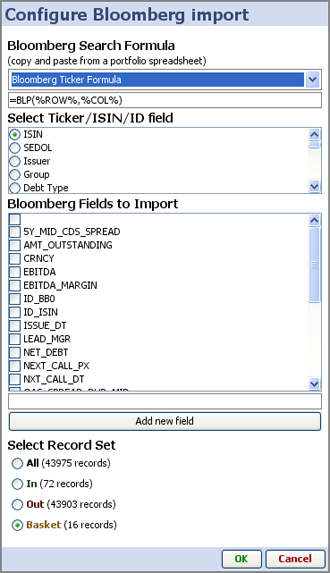
Bloomberg search formula- choose from four common formulae, or cut and paste your own formula from a working spreadsheet. (each of the options is further explained below)

Select Ticker/ISIN/ID field- your data set must contain a field that can be used by Bloomberg to match to their data. Securities identifiers like ISIN or SEDOLs, or Bloomberg tickers, etc.

Bloomberg fields to import- depending on your licensing arrangements with Bloomberg, there are many thousands of fields of data you can import and refresh directly into Omniscope files:

  Bloomberg fields list [18]

If you do not see the field you want listed in the dialog, check the Bloomberg list to make sure it is available and note its exact name.

Add new field- type in the exact name of the Bloomberg field you wish to import and click add new field. It will be added to your list of import and refresh options and ticked.

Select record set- select which data universe of data you wish to import the specified Bloomberg fields for. In the example at left, we are importing Bloomberg fields for only 16 securities in the basket, rather than the 72 in the IN universe or the 43,975 in this reference file for this class of instrument.

When you click OK, the bloomberg data will be imported, which may take a little while.

Note: To refresh your Bloomberg fields with live Bloomberg data imported into Omniscope, you must use the Refresh command:
Data > Refresh Bloomberg data (or you can use the keyboard shortcut Ctrl+F6)

This works so long as the Omniscope file is open.  If you close the Omniscope file and open it again later, you will have to use the Bloomberg Data Import wizard to add the Bloomberg fileds to your file again. This will change in future versions.

Search/import formulae options:  

Choose the form of Bloomberg search/import formulae that best suits your data and requirements.
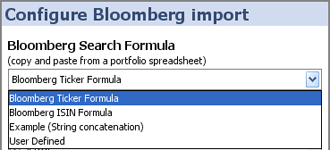


Bloomberg Ticker Formula -  =BLP(%ROW%,%COL%)

Typical BLP string which submits the Omniscope field value selected for ID, then the Bloomberg field names being requested, i.e those ticked below

Bloomberg ISIN Formula -  =BLP(CONCATENATE(%ROW%," Corp ISIN"),%COL%)

This formula is for submitting ISINs from Omniscope in the form 'XS0109263607 Corp ISIN', then the Bloomberg field names being requested, i. e. those ticked below

Example (string concatenation) -  =CONCATENATE(%ROW%," ",%COL%)

This formula can be used to test/demonstrate this function on machines which are not actually running Bloomberg.

User defined - choose this option to specify your own formula, using %ROW% to represent the Omniscope column values selected under Select Ticker/ISIN/ID field, and %COLUMN% to represent the Bloomberg fields you have ticked under Bloomberg fields to import.

Note: If you are importing fields for many records, you may have to manually refresh several times to ensure that all values have been imported. See Refreshing data from Bloomberg below.

Refreshing Data from Bloomberg

The best method of refreshing data, both in your own desktop, and in copies of the files you send to others who also have access to Bloomberg from their machines depends on your requirements, especially record (row) count, update/refresh speed and performance.

If you or recipients of your files want to refresh Bloomberg fields in Omniscope on a manual, as-needed 'pull' basis, using the Data > Refresh Bloomberg data should perform well enough. Indeed, when you first import Bloomberg fields into an Omniscope file, you may have to refresh manually a couple of times to fully populate the file. This form of refresh is best for small portfolios and for less-than real-time updates, for example daily closing prices.

Because persistent auto-refresh from Bloomberg has not yet been fully implemented in Omniscope, if you want to refresh a very large number of records on an automated 'push' real-time basis, use File > Export > Create Bloomberg spreadsheet to generate a stand-alone automatic price-monitoring Excel spreadsheet that may perform better for large portfolios requiring frequent real-time updates. This situation will change in future.

Advanced Bloomberg

Alternative Bloomberg Import Method

Advanced Bloomberg data import & refresh options


There is an alternative method for importing data from Bloomberg which by-passes the manual, non-persistent Importing using Bloomberg Data Import Wizard [19] method described above. System set up and requirements are the same.

To use this method you must also be permitted to run macros within Excel. Create an Excel spreadsheet using the template available here:


Sample Excel Bloomberg Import & Auto-refreshTemplate [20]


Within this spreadsheet you set up your Bloomberg data using the Excel Add-in for Bloomberg and set it to auto-refresh. The template contains a macro which will automatically save the file on a regular basis for as long as it is open. Once you are happy with the file, open it in Excel (permitting macros to run if asked) and you can minimise it to the bottom of your screen. Now launch Omniscope and open up the Excel file from the place on your hard-drive where you have it saved. When it is open you can set it to auto refresh and as the data in the Excel spreadsheet is populated from Bloomberg, the Omniscope will pull in that data and update to reflect it.

Alternatively, you can open an existing Omniscope file containing references such as ISINs or ticker symbols which are the same as those in your Excel spreadsheet and merge the values in. Then if you set up Live Update it will refresh the merge while retaining your own data.


Operations

Operations


Append

Append 

The append operation allows you to append the data from two or more data-sets to create a single data-set.

Options 

  • Field selection. Allows you to select the fields from the source data that you want to include in the appended data.
  • Source field. Select this option to create an additional field that lists the name of the input data-set each row in the data originated from. For example, if you are appending a series of time-sliced data-sets selecting this option will allow you to track which time-slice each row of data was otained from.

Example

In this example we are appending the data from 3 data-sets together. Each data-set contains spending data from selected days a single month. The first data-set contains data from January, the second contains data from February and the third contains data from March. The expense data is shown below. 

We use an append operation to combine the data from each of these three data-sets. In this example we select all fields and change the name of the Source field to 'Date'. The DataManager configuration for this operation is shown below.


Merge/Join

Merge/Join

The Merge/Join operation allows you to merge the data from two data-sets together to create a single data-set.

In most scenarios merging two data-sets requires that the two tables have at least one common field, and that at least one of these fields contains no duplicate records. If you intend to merge on a Date/Time field the storage/display formatting of both merge fields must be identical. 


Join by matching records where...

This allows you to specify the join criteria by selecting the matching fields from both datasets. You can define multiple join criteria; each criteria specifies a single match. To add a new join criteria click on the Add join criteria button. When you select a field to match on the number of unique records in that data-set are shown. In most cases one or both of the match fields should contain no duplicate values. If both fields contain duplicate values the merge may result in a huge number of records. Use the Accent sensitive and Case sensitive options to determine whether accent characters or case have a bearing on whether a value from the first data-set matches a value from the second. 

Which record sets do you want to retain?

This determines which records are included in the merged data based on the join criteria you specified. You can select any combination of these options. 

  • Non-matching records from data-set 1. Select this option to include all records from the first data-set that did not match any records from the second data-set.
  • Merged-records. Select this option to include all records that matched in both data-sets.
  • Non-matching records from data-set 2. Select this option to include all records from the second data-set that did not match any records from the first data-set. 

If there are any conflicting field names...

This alllows you to determine what action Omniscope should take if there are any fields outside of the join criteria with matching names. 

  • Add new field names. If a duplicate field name is found then a new field will be created with a new unique name.
  • Keep values from data-set 1. If a duplicate field name is found only the field from the first data-set will be retained.

Source field

Select this option to create an additional field that lists the name of the input data-set each row in the data originated from. For merged records both data-sets will be listed.

Example

In this example we will be merging the data of two tables. The first table contains a list of customers. The second table contains a list of transactions made by the customers during January. The input data for the Merge operation is shown below.

In order to merge these two data-sets we need to identify the join criteria. In this case both tables have a common field: Customer ID. We therefore need to create a merge operation with a single Join criteria, matching on records where Customer ID from the customers table matches Customer ID from the transactions table. 

The DataManager configuration for this operation is shown below.


Field organiser

Field organiser

The Field Organiser operation allows you to manage the fields inside a data-set. You can add, delete, re-order and edit the properties of the fields. 


The Field Organiser lists all of the fields in the data-set in the order that they appear. Each row of the list represents a single field.

You can add a field by clicking on the Add field button at the bottom of the operation. New fields will be added at the bottom of the list. 

You can rename all of the fields by clicking on the Rename all button.

You can delete all of the fields by clicking on the Delete all button. 

For each field Omniscope provides two sets of options: 

  • Top level options. These represent the most common operations that are executed on a field. You can change the field type, delete, re-order and duplicate the field and reset all of your changes.
  • Advanced and field-specific options. These options can be shown by clicking on the expand field icon , or by clicking on the field name. They represent options that are less common or options specific to a particular data type.

Top level field options 

  • Field type. The Field type dropdown displays the current data type. Omniscope classifies all data columns as either Integer numbers, Decimal numbers, Dates and Times, or Text. You can change the field to a different data type by clicking on the dropdown and selecting a new value, however doing so may result in some or all of the values being lost if the data cannot be converted. For example, If we have a Text field containg the values "Red","Green","23" and we attempt to convert it to an Integer number field, the first two values in this data will appear blank, since they cannot be converted to a number.
  • Rename. Click on this bttuon to change the name of the field. Field names must be unique. You can also rename the field by double-clicking on the field name.
  • Delete. Click on this button to delete the field from the data. If the field was in the source data you can click the Un-delete button to bring it back. If the field was one that you created then the field cannot be un-deleted.
  • Duplicate. Click on this button to create a duplicate of the selected field. The duplicate field will appear immediately bellow the source field. The name of the field will be a unique name prefixed by he name of the source field. All other options in the duplicated field will be identical to the source field.
  • Reset. Click on this button to reset all changes you have made to the selected field back to their original values.
  • Move field . This allows you to change the order of the field in the dataset. Click and drag to change the position.

Advanced and field specific options. 

Common field options

These options are available for all field types. 

  • Use formula. This allows you to enter a formula that will be used to generate the values inside the field. Immediately after selecting this option the formula editor dialog will be displayed. After entering the formula you can edit it at any time by clicking on the Edit... button. If the field previously contained some values these will be overwritten by the values generated by the formula. 
  
  • Replace values. This allows you to replace all of the values inside the field with a single value. The value you enter must be compatible with the selected field type. If the field previously contained some values these will be overwritten by the value specified.
  
Decimal number and Integer number options

These options only appear in Decimal or Integer number fields. 


  • Show thousand separator. This determines whether the thousand separator character is displayed.
  • Show as percentage. This determines whether the number is shown as a percentage value.
  • Decimal places. This option can be used to specify the number of decimal places shown for every value in the data. If left blank the number of decimal places is automatically calculated.
  • Prefix. This option allows to add a text prefix that is displayed at the beginning of the number. For example, you may choose to add the prefix "£".
  • Suffix. This option allows you to add a text prefix that is displayed at the end of the number.
Text options

These options only appear in Text fields. 

  • Tokenised. You can select this option if the data in the Text field contains a delimited list of multiple values. If you select this option you must also select the separator character.
  • Graded.  The graded option classes the data as sequential values, similar to numbers, such that they are coloured using a continuous colour scheme (shades of colour between start and end colours) rather than category colours (unrelated colours for each unique value).  See Style > Data colours.  For example, a rating field with values AAA, AA, A, BBB, BB, B, CCC, CC, C would have a custom value order and would be graded, so AAA appeared first and in the "max value" colour, and "C" appeared last in the "min value" colour.
  • Value order. By default, category values are sorted alphabetically. For many categories, alphabetical order is not meaningful. This option allows you to specify the default sorting order of the values. This order will be shown if you select the field in the Device bar in DataExplorer and will effect the colouring sequence. 
Date options

These options only appear in Date fields. 

  • Date format (input). This option shows the original date format of the field. You cannot edit this value unless you have converted from another field type to a date.
  • Date format (output). This option can be used to specify the date format applied to the data.
  • Time zone. This option can be used to specify the timezone.

 Go Back to data-operations [21].

Summarise fields

Summarise fields  

The summarise fields operation allows you to create a "Summary" field that combines the values from one or more fields into a single field. 


 Options

  • Fields. The field chooser you to select which fields from the input data will be included in the summary field.
  • Show field names. This option sllows you to select which fields from the selections made in the field chooser include their names in the summary data.
  • Summary field name. This option allows you to enter the name of the summary field.
  • Summary field separator. Allows you to select the characters that are used to separate the values of each field in the summary data.
  • Delete summary fields. If selected, the fields selected for inclusion in the summary data will be removed from the data-set. If unselected the fields will be retained.
  • Include empty values. If selected, blank values will be included in the summary data. If un-selected blank values will be skipped.  

Example

The Summarise fields operation is useful when importing data-sets with a large number of fields. Trying to analyse such a data-set can be inefficient, particularly when the data-set also contains a large number of records. If these fields aren't required for analysis, but you still want to retain the data it may be beneficial to create a single summary field instead.

In this example we are importing a data-set that contains information about a set of employees in the company. A sample of this data is shown below.

This data contains some fields that are useful for analysis: Name, Date of birth and Position. The data also contains some fields that we don't need to analyse: Performance evalutation and Academic qualifications. We could simply remove these fields using a field organiser, but we still want to be able to view the data. In this scenario we could use the Summarise fields operation to create a single field containing the values from these fields. Doing so will improve the overall performance of Omniscope once we have loaded the data.

The DataManager configuration for this operation is shown below. 


Go Back to data-operations [21]. 

Record filter

Record Filter

The Record filter operation allows you to generate a subset of the rows in a table by applying one or more filter rules.


Filter rules

Each filter rules defines a single condition for selecting a set of records in the data. You can create multiple conditions by defining multiple filter rules.

To add a new filter rule click on the Add rule button in the bottom toolbar. There is no limit to the number of rules you can add in a single Record filter operation.

To remove a single rule click on the Remove button or click the Remove all button to remove all of the rules in the operation.

To view or edit the rule click on the expand button  or click on the rule name. Each rule is comprised of 3 elements: 

  1. The name of the field you want to filter by.
  2. The rule you want to apply to the selected field.
  3. The value you want to filter against.
Match criteria


The match criteria options are shown at the top of the operation. They determine how the filter rules should be applied to the data. You can choose to either accept or reject the records that match all or any of the filter rules that are defines in the record filter operation.

Example

In the following example we have a data-set containing a list of company employees. The data is shown below.

We will use the Record filter operation to retrieve all Female employees based in London. To achieve this we need to create two filter rules. In the first filter rule we want to obtain all employees based in London. This rule is configured as folllows: 

  1. Field: Location
  2. Rule: =
  3. Value: London 

The result of applying this rule is shown below.

Now we want to add another filter rule. In this rule we want ot obtain all female employees. This rule is configured as follows: 

  1. Field: Sex
  2. Rule: =
  3. Value: London  
In the match criteria section we choose to Accept all records that match all of these rules. By combining these two rules together we are filtering the data to only accept records where Sex=Female and Location=London. The result of applying both of these rules together is shown below.


Go Back to data-operations [21].


Random sample

Random sample

The Random Sample operation generates a data-set containing a random sub-set of rows from the input data. This can be useful when you are working with very large data-sets, allowing you to work with a smaller sample of data while preparing and testing additional operations that need to be applied to the data. 

Options 

  • Records. The Records field allows you to select the number of records in the sample. The records are chosen at random, so each time you execute the operation you will obtain a different sample.

Example 

The Random sample operation can be useful when you are working with very large data-sets. You can use the Random sample operation to generate a small sample of the data.This is useful because some operations can take a long time to execute on large data-sets. By working with a smaller data-set you can create, configure and test additional operations that you want to apply to the data much more quickly.

In this example we are working with a fairly large data-set containing approximately 1,000,000 records. We want to use a combination of the Random sample operation and the Input switch operation to switch the data between a small sample of 1,000 records and the full data-set without having to reconnect our workflow. A configuration that allows us to do this is shown below.

 
If we want to change the data from the sample data to the full dataset we simply need to click on the switch in the Input switch operation.


More on Operations [21] 

Input switch

Input switch

The Input switch operation allows you to switch between two input data-sets.

Options

The Input switch operation contains only a single option: the switch. Clicking on the switch allows you to select the data-set you want to use.

Example

An example of using the Input switch operation can be found in the Random sample [22] operation documentation.

De-duplicate

De-duplicate 

The De-duplicate operation allows you to remove or retain the duplicate records in a data-set. 


 Options

  • Field selection. The field selection deterimes how the duplicate records are calculated. You should select a set of fields which together uniquely identify a single record. 
  • Minimum group size Define by 2 if duplicates, 3 if triplicates, etc.
  • Case sensitive
  • Output    


Pivot

Pivot

De-Pivot

De-Pivot


Transpose

Transpose

Aggregate

Aggregate

The aggregate options allows you to define an aggregated transformation of the input data and to define the aggregation functiona applied accross the values in each field.


Search/replace

Search/replace

The Searh/replace operation allows you to replace all occurrences of one value inside one or more fields with another.

Each Search/replace operation allows you to define one or more search actions. The actions appear as a list and are executed on the data in the order they appear in the list. You can change the order of the search actions by clicking and dragging the hand icon. You can change the name of the search by double-clicking on the name. 

  • Add search. Click this button to add a new search action.
  • Auto-generate. This allows you to auto-generate a series of search actions. When you click on this option the Auto-generate search dialog will be displayed. This dialog allows you to select a single field in the input data and to select which values inside that field you want to create searches  
 
  • Remove all. Click this to remove all the searches.  

Search options

You can view and edit individual search options by clicking on the name of the search action or by clicking on the expand button. 

  • Fields. This allows you to choose which fields you want to execute the search in.
  • Search for. This allows you to select the text you want to search for.
  • Match entire cell.
  • Replace with. This allows you to enter the text you want to replace the search text with.
  • Case sensitive.


Scramble

Scramble

The Scramble operation allows you to scamble the text in one or more fields. This allows sensitive data to be removed without affecting the structure of your file.


Expand values

Expand values

The Expand values operation allows you to expand the values inside a single field into one or more new fields.


  • Field selection.
  • Expand by.
  • Separator.

Expand by Separator example 


Expand by fixed width example 


Collapse values

Collapse values

The Collapse values operation allows you to combine all of the values in one or more fields into a single new field.

Options 

  • Fields. Allows you to select the fields you want to collapse.
  • Separator. Specifies how the values in the selected fields are separated.
  • Collapsed field name. The name of the field containing the collapsed values.
  • Skip empty cells. Determines whether empty or null values are included.
  • Delete collapsed fields. Determines whether the selected fields should be deleted. 


Tokenise

Tokenise 


De-tokenise

De-tokenise

Sort

Sort

The Sort operation allows you to sort your data by one or more fields. 


Options  

  • Field selection. Allows you to select which fields you want to sort by.   


Text mine

Text mine

The Text mine operation is used to extract and derive useful information from text in your data. The text mine operation currently provides three different mining algorithms; Top words, Word count and Sentiment. 

Field selection.

Select which text fields you want to mine.

Top words

The Top Words algorithm extracts the most popular words from the selected fields. The popularity of a word is determined by the number of occurrences in a text cell. Short words such as "the", "and" and "or" are ignored. 

Word count

The Word count algorithm counts the number of words and the number of unique words in a text cell.

Sentiment

The Sentiment algorithm attempts to determine the sentiment of the text. Sentiment is determined by counting the number of positive and negative words and calculating an overall score. A positive score indicates a positive sentiment whilst a negative score indicates a negative sentiment. The higher the score, the higher the sentiment. 


Google Translate

Google translate

The Google translate operation allows you to translate the text in one or more fields of a data-set from one language to another. It uses the Google translate service to perform the translation. You must have access to the internet to use this operation.


Options 


  • Fields. Select the text fields in your data that you want to translate. All values in the selected fields will be translated unless you specify an exclusion.
  • Source language. Select the language of the data in the selected fields.
  • Target language. Select the language that you want to translate the text to.
  • Exclude. Use this option to specify text that you want to exclude from the translation using a regular expression. Leave this option blank if you want to translate all text.

Outputs

Outputs


File output

File output

The File exporter allows you to publish data to a file on your computer or network.


File selection

The File selection section allows you to select the file you want to publish to.


  • Location. Click on the "Browse..." button to specify the location of the file you want to publish to.
  • Add filename timestamp. Select this option if you want to add a timestamp to the filename when publishing data. If this option is selected you will be asked to enter the Filename timestamp format. The timestamp format specifies the structure and granularity of the timestamp.
  • File type. The File type drop-down allows you to choose the format of the data you want to publish. 
The remaining file output options are dependent on the type of file you have chosen to publish.

Omniscope file options

The following options are available when you have selected an Omniscope file type (.IOK, .IOM).


  • View Config. The View config drop-down allows you to specify the tab and view configuration in the output file. Select Use target file view configuration to retain the view configuration in the selected output file (if it already exists). Choose Use default view configuration if you want to use the standard view configuration used for all new files. Finally select Use template view configuration to specify a template Omniscope file that contains the view configuration you want to use for the published data. The template file should be compatible with the published data, otherwise some of the template views may not display properly.
  • Keep link/history. Select this option if you want to keep the upstream connections as a data source in the published file.
  • Password/Confirm password. This allows you to enter a password to lock the file. Leave blank if you do not want to enter a password.
  • Permissions server. This option allows you to save a file with a URL pointing to the server which will be used to authenticate users who try to open the file.
  • Owner locked. Select this option to prevent any user other than the owner of the file copying, saving or cutting/pasting data from the published file.
  • Restrict to group. The restrict to group drop-down allows you to prevent users outside of a specified group being able to open the published file.
  • Warning on save. If selected, allows you to enter the warning text that will be shown whenever a user tries to save the file.
  • Strongly compressed. Select this option if you want to save the data in a strongly compressed format. This will require more time and memory to save the data, but will produce a smaller file.
  • Convert formulas to static values. Select this option to convert all formulas to static values prior to saving the data.

Text file options

The following options are available when you have selected a Text based file type (.CSV, .TSV) 


  • Type. The Type drop-down allows you to select the format of the data.
  • Has header. Select this option if you want to export the column headers.
  • Cell separator. Text, delimited type only.
  • Cell quote character. Text, delimited type only.
  • Encoding.
  • Locale.

Excel file options

The following options are available when you have selected a Microsoft Excel file type (.XLS, .XLSX).


  • Sheet name. Allows you to enter the name of the worksheet inside the Excel file that you want to publish to. 


URL output

URL output

The URL output block allows you to publish a data file to a remote address.

Options 

  • Location. Allows you to specify the web address you want to publish your data to. Click on the browse button to enter the address.
 
After selecting a URL, the options for downloading the data into Omniscope are shown. The options are dependent on the file selected.


DataPlayer2 output

DataPlayer output

The DataPlayer publisher allows you to export your data as a DataPlayer2 Flash file.

Options 

  • Template file. Allows you to select the Omniscope file containing the DataPlayer view that you want to use as a template. The selected file must contain at least one DataPlayer view.
  • Template tab. The template tab drop-down allows you to select the tab in the template file that contains the DataPlayer view you want to  use as a template.
  • Output format. The output format drop-down allows you to select how you want to publish the DataPlayer data.


Print output

Print output


PDF output

PDF Output


PowerPoint output

Power Point output 


Database output

Database output


Email output

Email output


Link content output

Link content output


Publish on visokio.com

Publish on "visokio.com"

The Publish on "visokio.com" output allows you to publish your data to a server hosted by Visokio. This makes it easy to add a link to your data in a web page or to share the data with other users.

Options

Page options

The Page options tab contains options for configuring the page that will host your data. 

  • Name. The name of the page that you want to create. When you enter a name Omniscope will let you know whether a page with that name already exists. If the page does exist and you decide to use the name the old data will be overwritten.
  • Admin password. The password you want to use to protect your page. The password is optional and is used to stop your file being overwritten by someone else using the same page name. If you have entered the name of a page that already exists you will need to enter the corresponding password to publish the data.
  • Title. The page title.
  • Description. A description of the file. The description should be no more than 50 characters.
  • Link. The address that users can use to access your file after it has been published.
File options

The File options tab contains options for configuring the file hosted on the page.  


Batch output

Batch output

The Batch output allows you to publish your data to multiple locations as determined by a publish configuration in a batch control file.

Options


The Command file selection allows you to specify the location of the batch command file. Click on the Generate command file to generate an empty command file or click the "Browse..." button to select an existing command file.

The Email connection details section allows you to specify the SMTP settings for publishing email data. You should only select this option if you have specified at least one email output in the batch command file.

Batch control file

The batch control file is an Omniscope IOK file that specifies how and where the data should be published. Each row in the control file contains the instructions for publishing data to one location. A single control file can be used to publish to any number of locations.

The structure of the control file is outlined below.

 Column Name
 Usage instructions
 Description
 Valid values
Output typeRequired

The type of output you want to publish.

"File" to publish as a data file.

"Email" to publish as an email message.

"DataPlayer" to publish as a DataPlayer file. 

File directory"File" output type only.  The directory you want to publish the output file to. 
File nameRequiredThe name of the file you want to generate. Enter both the name and the extension. You can specify the type of file you would like to generate by changing the extension. 
Filename timestamp
  If specified, output files will have a timestamp in the filename. The value should be a date/time pattern such as yyyy-MM-dd-HH-mm-ss. See Help with Date formats [23] for more information. Leave blank for no timestamp. yyyy-MM-dd HH-mm-ss-SSS
Email to"Email" output type only.List of "To" email addresses. Separate each address with the "," character.  
Email cc"Email" output type only. List of "Cc" email addresses. Separate each address with the "," character. 
Email bcc"Email" output type only.List of "Bcc" email addresses. Separate each address with the "," character. 
Email subject"Email" output type only.The email subject text. 
Email message."Email" output type only.The email message text. 
Template file."IOK" files or DataPlayer output type.The full path to the template file to be used when publishing the data. 
Preserve template formatting and formulasOnly used if Template file set.Determines whether formulas that exist in the template file will be retained in the published data. If selected you must ensure that the published data as a field of the same name and type. If unselected, all fields in the template file will be replaced entirely."true" or "false". Default is "false". 
PasswordIOK files only.The password to set on the published file. 
Column inclusions A list of columns you want to include in the published data. Separate each column name with the "," character. Leave blank to include all columns. Use either Column inclusions or Column exclusions, but not both. 
Column exclusions A list of columns you want to exclude. Separate each column name with the "," character. Leave blank to include all columns. Use either Column inclusions or Column exclusions, but not both. 
Filter condition Determines the logic for applying the filter rules."Accept" or "Reject" to accept or reject all records matching your filter rules. Default is "Accept".
Filter match Determines the logic for applying the filter rules."All" to match on all filter rules, "Any" to match on any filter rule. Default is "All".
Filter rules. A list of filter rules you want to apply to the data. Used in combination with the Filter condition and Filter match. Separate each rule using the "," character.

Rules should be constructed as follows:

[COLUMN_NAME]OPERATOR[VALUE]

Some example rules are listed below:

[SEX]=[FEMALE]

[NAME]CONTAINS[CHRIS]

[AGE]>[35]

Valid operators for text columns are: has no value, has any value, =, does not equal, contains, does not contain, starts with, ends with.

Valid operators for numeric and date columns are: has no value, has any value, =, does not equal, >, >=, =, contains, starts with, ends with.

© Visokio | Privacy Policy | Terms of Use | Contact Us


Source URL (retrieved on 11/01/2017 - 21:16): http://kb.visokio.com/data_manager

Links:
[1] http://www.mysite.com/example.iok
[2] http://bloggingabout.net/blogs/mglaser/archive/2008/08/15/configuring-http-access-to-sql-server-2008-analysis-services-on-microsoft-windows-server-2008.aspx
[3] http://www.salesforce.com/
[4] http://www.force.com/
[5] http://sites.force.com/appexchange/apex/listingDetail?listingId=a0N300000016cdWEAQ
[6] http://www.salesforce.com/appexchange
[7] http://kb.visokio.com/installed-salesforce-tab
[8] http://kb.visokio.com/salesforce-direct-connection
[9] http://kb.visokio.com/salesforce
[10] http://www.google.com/analytics/
[11] http://www.atlassolutions.com/
[12] http://www.google.com/doubleclick/
[13] http://www.brandwatch.com/
[14] http://www.bloomberg.com
[15] https://software.bloomberg.com/bb/service
[16] http://kb.visokio.com/bloomberg-advanced
[17] http://kb.visokio.com/contact
[18] http://kb.visokio.com/files/Resources/OUGuide/134_Connectors/01_Bloomberg133/BloombergDDEFields.iok
[19] http://kb.visokio.com/bloomberg-help
[20] http://kb.visokio.com/files/Resources/OUGuide/134_Connectors/01_Bloomberg133/AutoSaveTemplate.xls
[21] http://kb.visokio.com/data-operations
[22] http://kb.visokio.com/node/661
[23] http://kb.visokio.com/dates-and-times
