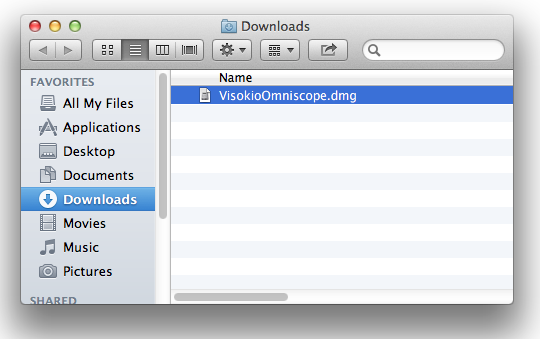
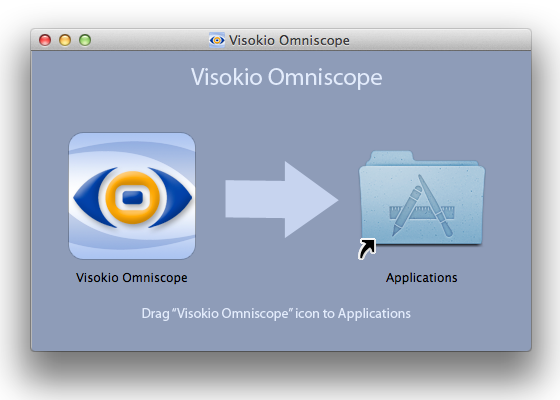
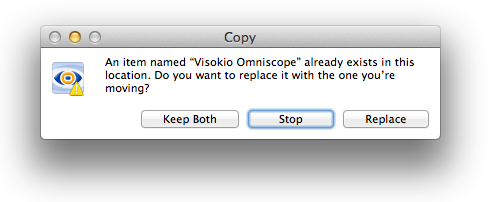
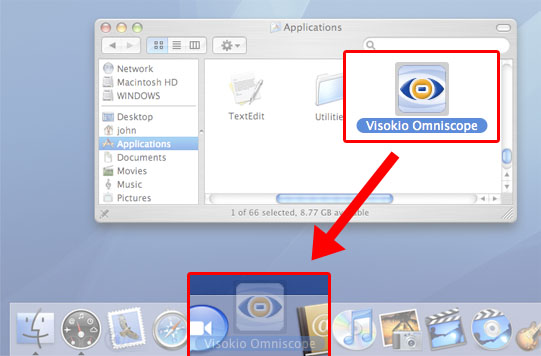
Omniscope is available for Mac OS X 10.3 or later. Requires Java 5 or later, usually already installed.
Both 32 and 64 bit operation is supported by the Mac installer, using 64-bit by default if available.
Primarily because the Mac has a fundamentally different operating system from Windows PCs, there are some limitations in the current Mac version of Omniscope.
Omniscope Server on Mac OSX
Start Omniscope in the normal manner, e.g. using Finder locate "Visokio Omniscope" in Applications.
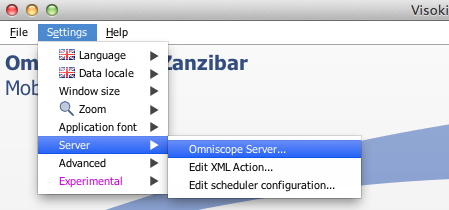
Once a valid server license has been activated the Settings Server menu will show menu items.
Select the Settings menu, select Server, select "Omniscope Server".
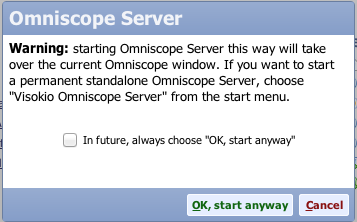
A warning message will be displayed saying that the Omniscope Server will take over the current Omniscope Window, select "OK, start anyway"
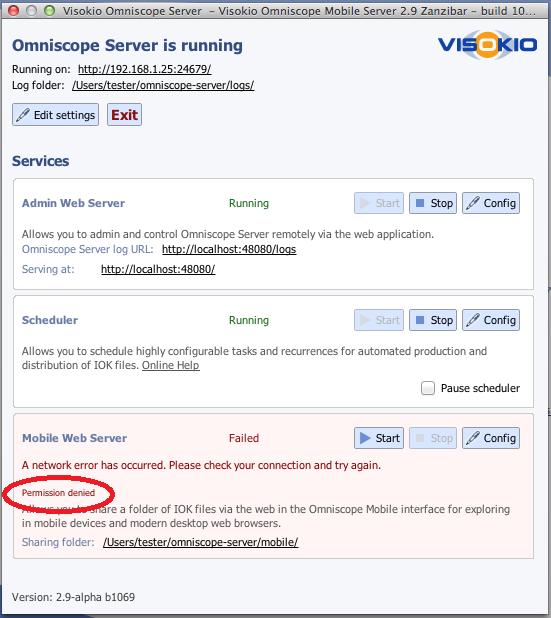
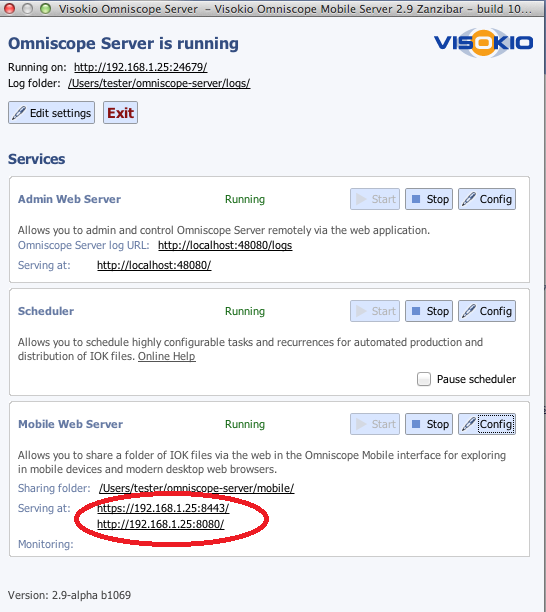
The Omniscope Server window will be displayed.
Mobile Web server will display a network error as it cannot use port 80 unless run as root.
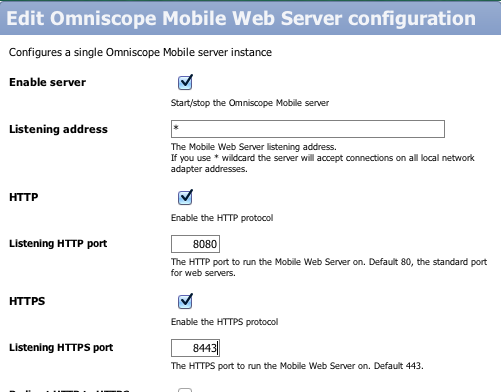
Change the Mobile Web server ports for http to 8080 and https to 8443 by selecting Config in the Mobile Web Server section.
Omniscope Server is now running.
Place the IOK files in the "Sharing folder" which which can be viewed using the urls listed in the "Serving at" fields.
Selecting Exit will shut down the server and return to Omniscope.
The following two command files will allow you to start Omniscope server directly, the first command file will run the server with the server control window GUI, the second command file will run the server without a control window.
Open a terminal and change to the directory that you have placed the command files. Change the permissions so that it is executable.
chmod uog+x OmniscopeEnterprise.command
chmod uog+x OmniscopeEnterprise-no-gui.command
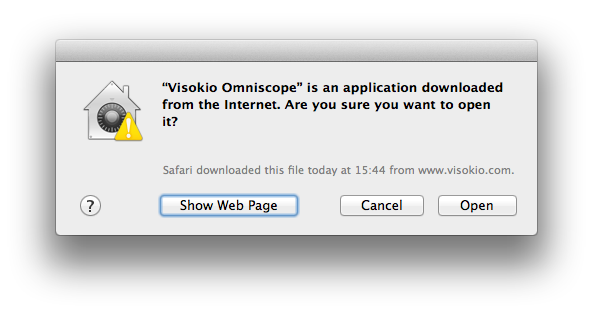
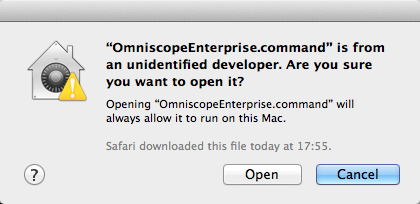
You will need to Ctrl-Click on the command the first time to allow it to run as it will be blocked because the script is not signed, select Open.
If your browser is blocking the download use a texteditor to create the files as below.
NOTE: change the memory to match your system, this is set to 6Gb -Xmx6144m for use on a system with 8Gb of RAM installed
Use a texteditor to save the following command as OmniscopeEnterprise.command
/Applications/Visokio\ Omniscope.app/Contents/Plugins/jre7/Contents/Home/jre/bin/java -Xmx6144m -XX:MaxPermSize=128M -XX:MinHeapFreeRatio=20 -XX:MaxHeapFreeRatio=50 -XX:NewRatio=8 -XX:+UseG1GC -Duser.dir=/Applications/Visokio\ Omniscope.app/Contents/Resources/Java -cp /Applications/Visokio\ Omniscope.app/Contents/Resources/Java/Main.jar:/Applications/Visokio\ Omniscope.app/Contents/Resources/Java/lib/mailapi.jar:/Applications/Visokio\ Omniscope.app/Contents/Resources/Java/lib/smtp.jar:/Applications/Visokio\ Omniscope.app/Contents/Resources/Java/lib/pop3.jar:/Applications/Visokio\ Omniscope.app/Contents/Resources/Java/lib/imap.jar:/Applications/Visokio\ Omniscope.app/Contents/Resources/Java/lib/dsn.jar:/Applications/Visokio\ Omniscope.app/Contents/Resources/Java/lib/activation.jar:/Applications/Visokio\ Omniscope.app/Contents/Resources/Java/plugins/bccrypto.jar com.visokio.ent.EntLaunch
To run in "headless" mode with no GUI interface add -Djava.awt.headless=true to the parameters.
Use a texteditor to save the following command as OmniscopeEnterprise no gui.command
/Applications/Visokio\ Omniscope.app/Contents/Plugins/jre7/Contents/Home/jre/bin/java -Xmx6144m -XX:MaxPermSize=128M -XX:MinHeapFreeRatio=20 -XX:MaxHeapFreeRatio=50 -XX:NewRatio=8 -XX:+UseG1GC -Duser.dir=/Applications/Visokio\ Omniscope.app/Contents/Resources/Java -Djava.awt.headless=true -cp /Applications/Visokio\ Omniscope.app/Contents/Resources/Java/Main.jar:/Applications/Visokio\ Omniscope.app/Contents/Resources/Java/lib/mailapi.jar:/Applications/Visokio\ Omniscope.app/Contents/Resources/Java/lib/smtp.jar:/Applications/Visokio\ Omniscope.app/Contents/Resources/Java/lib/pop3.jar:/Applications/Visokio\ Omniscope.app/Contents/Resources/Java/lib/imap.jar:/Applications/Visokio\ Omniscope.app/Contents/Resources/Java/lib/dsn.jar:/Applications/Visokio\ Omniscope.app/Contents/Resources/Java/lib/activation.jar:/Applications/Visokio\ Omniscope.app/Contents/Resources/Java/plugins/bccrypto.jar com.visokio.ent.EntLaunch