
Always check the Forums to see if your issue has been addressed; This link will access all installation tagged posts in the Forum:
http://forums.visokio.com/discussions/tagged/installation [1]
Java is a free addition for all operating systems, including Windows, Mac or Linux/Unix. Full installations of Omniscope include their own private version of Java (PVM). This means that no other applications use the version of Java bundled with Omniscope, minimising any possible security issues with Java, while maintaining the all advantages of Java portability across all types of devices, except iOS IPads and Android tablets, that do not support Java, although Windows tablets do.
The version of Java bundled with Omniscope is incremented periodically, since Java is open-source and being improved continuously. There are sometimes a few outstanding known issues in each new version of Java. We try to anticipate and help manage these rare issues when possible until fixes are included in the next release of Java. The most current version of Java is always available from the official Oracle Java site [2]. Information on known Java installation issues is here [3].
When launching Omniscope, you might encounter the following error "Unable to create Java Virtual Machine".
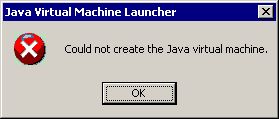
You might also see these types of error messages:
"Error occurred during initialization of VM
Could not reserve enough space for object heap
Could not create the Java virtual machine."
If you see this message, or one similar indicating the Omniscope cannot start, please read possible solutions for this issue on this link Memory fragmentation [4].
Automatic activation, updating and bug reporting functions all depend on Omniscope being able to access the Internet. Firewall settings and additional machines between your machine and the Internet called Proxy Servers can interfere with the ability of the Visokio application to access the Internet. In general, correct Proxy Server configuration will ensure that all functions are available. If not, in each case, there are work-arounds available:
Following error message may (rarely) appear on Omniscope startup:
"Your computer is not configured correctly. Omniscope is unable to determine the user profile directory correctly and is using a temporary directory as a fallback."
To solve the issue, please attempt the following:
If you experience hanging with no Omniscope error message displayed, first consult the list of known Java issues below, some of which you can resolve by updating your version of Java.
Note: Neither Windows nor Java allow file names with '?' or other special characters such as '*' in the file name. If you use a '?' or '*' or other special characters when you specify the file name, nothing will happen. Try saving the file with a different name not including unusual characters.
Java will not start - There is a known issue involving a small percentage of machines that start with very fragmented memory available to Java, which requires contiguous memory of the specified amount to start. More information [4]
If your installation opens normally, but at some point experiences hanging or freezing, and you do not see an error message, and you are not experiencing one of the known Java problems outlined above, please follow the hang diagnosis procedure [10].
If you are experiencing graphical glitches and artifacts in some of the Omniscope views (especially the web-browser-based Web View, please follow the steps below to resolve the glitch by setting the system property "sun.java2d.d3d" to "true". This property is normally set to "false" by default to fix potentially slow rendering when making selections in the Graph view.
#ADDITIONAL_JVM_ARGS=-XX:+HeapDumpOnOutOfMemoryErrorRem
ADDITIONAL_JVM_ARGS=-Dsun.java2d.d3d=true
(Note: if you are running on a 64-bit machine "installconfig.properties" is located at "C:\Program Files (x86)\Visokio Omniscope").
If the above still does not fix, you may also want to try the following property. (Please note the following will only work in on version 2.6+)
You may have reached the data capacity limit on your computer. This is more often a problem with computers running 32-bit Windows, which limit data addressing space. Please consider using the 64-bit Windows and installing the 64-bit version of Omniscope. Both are available at no extra charge. Machines with 64-bit Windows can access billions of times more data than machines running 32-bit Windows.
1) As a possible fix with existing Operating System and RAM, please push the maximum memory above the 75% default as instructed in this page [5].
It is recommended that if you are on a 32-bit PC with 2GB memory, that you push the limit up to 1750MB. In case you run multiple instances of Omniscope, they will all use the same settings, as configured in installconfig.properties, so you will have to decrease memory allocation and make sure MAX_MEMORY is adjusted so it leaves some memory for the OS (on a machine with 4GB of ram and 2 GB pagfile, with 4 Omniscope instances running - Xmx should be set to 2GB).
2) You can also try to increase the -Xms, in installconfig.properties, which is the initial memory allocated to Java. Default of 64M might be too low and you can try 256M.
For example, to set Xms to 256 use:
ADDITIONAL_JVM_ARGS=-Xms256M
Note: there is dash before capital X, followed by 'ms' followed by a number and ending in a 'M'
3) Set DISABLE_DEFAULT_HEAP_OPTIONS=true in installconfig.properties . Turning this option on will disable Omniscope's default memory options and may have an impact on memory.
4) Add "-XX:+UseParallelGC" without the quotes to "Additional_jvm_args property in installconfig.properties. This is useful diagnostic tool it helps us verify if the default Java memory management algorithm is causing the issue. Turning this option on effectively replaces the default with an another algorithm. The role of the memory mamangent algorithm is to go through and release memory so that when certain sections of memory are no longer required they are freed so that they can be used later.
If any of the above has not solved your problem, contact us for further help.
If you are in a typical medium to large organisation, your PCs may access the Internet through a proxy server. Proxy servers are separate computers that act as gateways and are used to improve security and efficiency.
Omniscope needs to be able to access the Visokio servers for various reasons including activation, automatic updates and sending bug reports. These servers are accessed via host services.visokio.com, port 80.
Also, some user-configured functionality requires Omniscope to retrieve data from user-configured sites on the internet - such as live price quotes and web services. Note: that Omniscope only retrieves text and value data from websites configured by the user, and never retrieves executable content or data that may be considered a security risk.
Omniscope detects proxy settings automatically, out-of-the-box. You should not need to make any configuration changes to your Omniscope installation.
In rare cases this does not work with a particular organisation's proxy settings policy. You can tell when proxy settings are not working when Omniscope is unable to check for updates but your web browser is able to access the internet successfully.
If auto-detected proxy settings do not work, you can manually configure your proxy settings (below). Alternatively, if you only wish to permit access specifically to the Visokio servers to support license activation, you may be able to reconfigure your proxy server and firewall to allow direct access specifically to services.visokio.com, port 80.
When activating Omniscope, if the proxy settings detected are not correct, Omniscope may ask you to enter these as part of the product activation dialog steps. If the Online activation failed dialog appears, click the Proxy settings button and enter the details, as described below.
Remove any manually specified proxy settings you may have made and verify that the Internet is accessible, but that Omniscope does not work. Install Omniscope from the full installer (which includes Java) on a clean PC and test. This will rule out a different Java VM and the possibility of any manual settings still taking effect.
Leave any manually specified proxy settings removed for the following tests.
Try passing the startup property "visokio.disableSystemProxies", by adding the line below to the installconfig.properties file in the installation folder, making sure this line does not already exist without a preceding "#":
ADDITIONAL_JVM_ARGS=-Dvisokio.disableSystemProxies=true
If this has no effect when you restart Omniscope, revert this change.
Also try the following:
ADDITIONAL_JVM_ARGS=-Dvisokio.disableCustomProxySelector=true
If this has no effect when you restart Omniscope, revert this change.
Finally, try enabling the startup property "enableProxyDebug", by adding the line below (again, making sure this line does not already exist without a preceding "#":
ADDITIONAL_JVM_ARGS=-DenableProxyDebug=true
Restart Omniscope, verify the Internet is not available, and submit an error report from within Omniscope, which should be clearly labelled. You will need to email the saved report to us. We may be able to determine from this whether there is a problem with Omniscope, or whether it is a fault with Java's detection of proxy settings.
Also use the debug launcher (Omniscope_debug.exe or launch_debug.exe in the installation folder) and send us screenshots of the dialogs that appear.
If you are a system administrator and are deploying (rolling out) Omniscope to multiple PCs, you can simultaneously roll out proxy settings. This permits your deployed installations to be activated by your users based on your exact proxy configuration settings if they are unusual..
for HTTP proxy to:
                   #Resource properties file
                   #Wed Feb 15 13:37:09 GMT 2006
                   http.proxyPort=80
                   http.proxyHost=proxy.visokio.com
for HTTPS proxy to: #Resource properties file
#Wed Feb 15 13:37:09 GMT 2006
https.proxyPort=80
https.proxyHost=proxy.visokio.com
There is a known, machine-specific Java issue that affects less than 1% of PCs, which start with Java memory so fragmented that the contiguous block required for the Omniscope bundled Java PVM to start is not available. In other words, the 1100 MB default Java memory cap set in Java for Omniscope is too high relative to available contiguous memory on a few (mostly older) PCs, despite the PCs in question having 2 or even 4 GB of RAM memory. This condition is more common under XP but can affect Vista PCs as well. When Java fails to start because of memory fragmentation, the user will typically see messages like:
Error occurred during initialisation of VM
Could not reserve enough space for object heap
Could not create the Java virtual machine.
A major reason why this problem occurs is because Windows loads DLLs into the same memory space as the one Java uses which causes memory to become fragmented. Unfortunately optimizations in Windows that minimize the relocation of DLLs during linking make it more likely you'll have a fragmented address space. Other files that are likely to take space include security software, CBT software, spyware and other forms of malware. Likely causes of the variances are different security patches, C runtime versions, etc.
More information discussing the this problem can be found on the links below:
There are several possible solutions to resolve this problem:
Try reducing the default memory allocation till Java starts. If we were to reduce the default 1100 MB cap further to allow for such machine-specific conditions, we would be reducing the great majority of Omniscope users' data management capacity for the needs of the very few. If you have a machine with this problem, the current work-around is to manually reduce the specified Omniscope memory cap in stages (reduce to 1000 MB, then reduce to 900 MB, etc.) until Omniscope will starts on the affected PC. In some cases, the memory cap has to be reduced to around 650 MB. The process for changing memory allocation of Omniscope can be found here [5].
Change to a 64-bit operating system, which will generally resolve not only this issue, but will also provide lots other performance and data set capacity benefits as well, as explained here [16]
In the event of the application hanging (freezing, so no user interaction is possible), please use the following procedure to send a hang diagnosis to Visokio (Windows PCs only). Although these steps may seem complex, this will help us greatly with what can be a difficult problem to diagnose. For assistance please contact us.
Java is freely downloadable, open-source software that provides a 'virtual machine' or VM that permits software like Omniscope to run on many different machines and operating systems. For more information on Java, see Wikipedia [18]. Visokio applications are pure Java applications that run 'on top' of a 'bundled' Java virtual machine which runs 'on top' of your machine's operating system. The Omniscope installer includes its own 'private' version of Java, not accessible to any other application for maximum security. Java is open-source software that is being continuously improved. Periodically, there is a new release of Java, and known issues in Java emerge which are relevant to installation and performance of Visokio applications.
You only need to worry about the shared, general-purpose version of Java installed on your or recipients' machines when you use the Web Start deployment option for your IOK files. But if you choose to deploy files using Omniscope Online (Web Start) instead of the fully-installed free Viewer, all the machine you plan to distribute to will need to have Java 5 or later.
In this section, we summarise known Java installation issues and implications of up-grading to the latest versions of Java. Other known issues with Java that do not affect installation, but can cause a hang with no Omniscope error messages are listed here. [19]
Java has security settings which may affect the treatment of images. If user settings restrict access to certain packages in particular the sun.awt.image package within Java then certain views can be affected. The following issue has been seen before:
java.security.AccessControlException {class java.security.AccessControlException "access denied (java.lang.RuntimePermission accessClassInPackage.sun.awt.image)"
at java.security.AccessControlContext.checkPermission(Unknown Source)
at java.security.AccessController.checkPermission(Unknown Source)
at java.lang.SecurityManager.checkPermission(Unknown Source)
at java.lang.SecurityManager.checkPackageAccess(Unknown Source)
at sun.misc.Launcher$AppClassLoader.loadClass(Unknown Source)
at java.lang.ClassLoader.loadClass(Unknown Source)
at java.lang.ClassLoader.loadClass(Unknown Source)
at java.lang.ClassLoader.loadClassInternal(Unknown Source)
It is likely that your security policy is not letting you access to classes in java.awt.image packages.
Access to classes in AWT package, viz., and the java.awt.image packages are required.
In order to fix this problem you need to grant Omniscope users permission by adding the following statement
grant {
permission java.lang.RuntimePermission
"accessClassInPackage.sun.awt.image";
}
to any of the security policy files referred to by statements such as
policy.url.1=file:${java.home}/lib/security/java.policy
policy.url.2=file:${user.home}/.java.policy
in the Java security configuration file for your installation. This file should
be located at ${java.home}/lib/security/java.security.
${java.home} refers to where java is installed i.e. "C:\j2sdk1.4.2_14".
${user.home} refers to user home directory which on Windows is "C:\Documents and Settings\<user>" where
<user> refers to the user name. For example use named David, user.home would be "C:\Documents and Settings\David"
The Windows Vista operating system is not fully supported in Java versions 1.4, Java 1.5 releases prior to build Java 1.5.0_11 (Java 1.5.0_11 or later supports Vista), or Java 6 original release or 1.6.0_01 (Java 1.6.0_02 or later supports Vista). If you are running a Java version not fully supported on Vista please update to the latest release of Java at http://www.java.com [20] or use the PVM version bundled with our applications (Java 1.5.0_11).
Some fonts can crash earlier versions of Java and this has been fixed in latest releases of Java. Visokio applications have been modified to minimise the impact of this rare problem in the event you are running older versions of Java.
Omniscope is a Java application, so their compliance with DST (as recently updated) depends on the Java VM used.
http://www.oracle.com/technetwork/java/javase/timezones-137583.html [21] provides details on Java version DST status.
Links:
[1] http://forums.visokio.com/discussions/tagged/installation
[2] http://java.com
[3] http://kb.visokio.com/kb/java-issues
[4] http://kb.visokio.com/kb/java-memory-fragmentation
[5] http://kb.visokio.com/kb/omniscope-memory-allocation
[6] http://kb.visokio.com/kb/proxysettings
[7] http://kb.visokio.com/kb/activation
[8] http://kb.visokio.com/getomniscope
[9] http://kb.visokio.com/issue-report
[10] http://kb.visokio.com/kb/hangdiagnosis
[11] http://wiki.visokio.com/attach?page=ProxySettings/proxy.txt
[12] http://wiki.visokio.com/PageInfo.jsp?page=ProxySettings/proxy.txt
[13] http://stackoverflow.com/questions/171205/java-maximum-memory-on-windows-xp
[14] http://forums.sun.com/thread.jspa?messageID=2715152#2715152
[15] http://www.unixville.com/~moazam/
[16] http://kb.visokio.com/kb/64-bit-configuration
[17] http://kb.visokio.com/online-error-report
[18] http://en.wikipedia.org/wiki/Java_(programming_language)
[19] http://kb.visokio.com/kb/troubleshooting
[20] http://www.java.com
[21] http://www.oracle.com/technetwork/java/javase/timezones-137583.html