
This section contains articles covering various aspects of importing data directly into Visokio applications from SQL-compliant relational database tables/reporting views using the Database Connection dialog and standard ODBC or JDBC protocols. Omniscope can import the results of any SQL statement that returns a single, flat table using either ODBC (one database, multiple tables) or JDBC (multiple databases, multiple tables) protocols. If you have large datasets, the JDBC option will perform better with most relational databases.
Connecting to Relational Databases [1] - contains various examples of making connections to transactional tables or (preferably) reporting views generated by relational databases from various different vendors.
MS Access ODBC [2]- examples for 2007,
MS SQL Server JDBC [3] - examples for 2008, 2005 and 2000 versions
Oracle 10g Thin JDBC [4] - example for recent versions of Oracle
Oracle 8.1 JDBC [5] - example for older versions of Oracle
MySQL 5.1 JDBC [6] - example for MySQL
Generic JDBC [7] - general example that should work with most datbase vendors that support JDBC connections
Connection-caching [8] - database connection caching is supported by Omniscope. This is mainly of use in Enterprise server installations, and should be ignored for typical desktop use as it will provide little benefit.
DSN-less ODBC [9] - describes a method of connecting/refreshing multiple machines on a network without the administrative overhead of configuring the data source on each machine.
ODBC & JDBC [10] - two standard protocols for connecting to relational databases, these options are sufficient for connecting to SQL-based transactional tables or reporting views. Some data sources which do not support these standards, for example MDX-based multi-dimensional 'cubes'.
Note: Importing and refreshing from delimited data files (including data files exported from relational databases) is covered in the section on importing/exporting to/from data files [11].
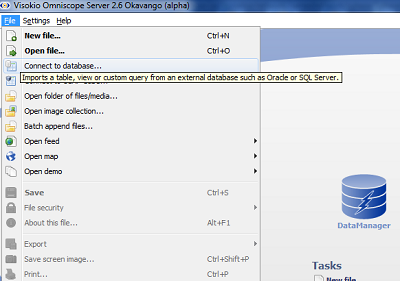
Omniscope includes a Database Connection dialogue to help establish direct connections to database tables and reporting views. The dialogue is accessed via the Main Toolbar: File > Connect to database command. Using the dialogue, anyone can import the results of any SQL statement/query that returns a table.
In order to connect directly to a database (rather than importing a delimited .CSV or .TSV data file that has been exported from a database) you need to know the type of database and its connection details. From the Database Connection dialogue, enter the connection details for your database and choose which database table or reporting view you wish to retrieve data from. By default, this will create a persistent linked data source relationship between this database table/reporting view and the .IOK (Omniscope) files you are creating.
If you connect via ODBC, you can access multiple transactional tables, but only one database. If you connect via JDBC, you can retrieve data from multiple tables in multiple databases, and performance will also be better. If you do not know how to write the SQL query that assembles the reporting view you want to import into Omniscope, ask your Database Administrator to add the query in Omniscope. Every subsequent refresh re-creates the reporting view, drawing the latest information from transactional table(s) within the database(s) to create a single, 'flattened' tabular view of the data for scrubbing, analysis and reporting.
ODBC is a technology for connecting to most databases and requires you to set up a named ODBC data source in Windows. This is the approach needed to connect to an Access .MDB database, for example. In Windows XP, for example, go to Control Panel, Administrative tools and choose Data Sources. Click Add, choose the Access driver (or otherwise, depending on your type of database), choose the appropriate .MDB file and enter a suitable Data Source Name.
If you have a database that supports JDBC, or wish to customise the database import behaviour, you can connect via JDBC using a JDBC JAR driver file obtained from your database vendor or 3rd party. This may need to be specific to your database version as well as vendor. You will need to know how to construct the "JDBC URL" for your database. If your database is covered in the examples, follow the instructions on the example page for your database. If your database is not covered in the example list, see the JDBC generic instructions [7].
The Database Connection dialogue sequence of screens allows you to choose JDBC and enter the JDBC JAR driver path such as:
"C:\Program Files\MyDatabase\Java\JDBC.jar", and the JDBC URL such as "jdbc:mydb:products".
Enter the username and password, if necessary, and choose the table or view you want to look at.
On the next sceen, you can customise the SQL statements, allowing you to JOIN multiple tables on the fly. Only change these values if you are familiar with the implementation of SQL for your database vendor and version.
Relational Databases as linked sources
Any Omniscope file serves as a template file for future data refreshed versions of the file. Omniscope template files remember and refresh from their data sources. If the source is a relational database, Omniscope will re-execute the embedded SQL statement and any subsequent merges, joins and aggregations on every refresh.
To save the connection details you have entered into the Database Connection dialogue for subsequent refreshes, save the current file using File > Save. The saved file will contain a (highly-compressed) snapshot of the data as it was when imported, plus all the database connection parameters, including the SQL statement that returns the table you entered into the dialogue. You can configure refresh behavior each time you (as owner) save the file. You can test refreshing from the database specified in the Database Connection dialogue by choosing Data > Refresh from source.
Unlike text-based delimited data file import (such as XLS or CSV), Omniscope when the linked source is a direct connection to a relational database does not automatically inspect and convert data types. Instead, the data type descriptions of the fields in your database are relied upon to determine data type in Omniscope. If your database declares the field "CUST_AGE" as Text ("Char", "String" or "Varchar"), Omniscope will treat it as Text also. To avoid the need for manual changes, you must structure your source database correctly by declaring the field "CUST_AGE" as a numeric field (for example).
At present, relational database connections in Omniscope only go one way, i.e. they only import a copy of the data in the database table or reporting view. You can make edits but cannot submit your changes directly back to the database table automatically. If you plan to edit/scrub data from databases in Omniscope, you will need to agree a way of submitting documented corrections and additions back to the Database Administrator, usually by exporting a .CSV or a human-readable, parse-able .XML corrections file such that the Administrator can use simple tools to import the corrections made in Omniscope back to the source database.
Suggestions: Don't make too many pre-selections in the SQL statement query assembling the reporting view. Errors in fields can result in some records not being included in the reporting view if you are being selective. Try just dumping all records for each major entity (e.g. people and all fields linked to people, places and all fields linked to places, things and all attrributes linked to things etc.) into a few large reporting views extracted from the database(s). Open these views in Omniscope and save them on the server - effectively creating 'data marts' in Omniscope file format. You can then re-name/correct/scrub and filter/hide unwanted data visually and create 'child' Omniscope files which will refresh from the (server-based) 'data mart' Omniscope files, which are in turn automatically refreshing from the data warehouse.
Warning: Preserving changed and merged data: Omniscope does not currently support partial refresh from database tables/views. Refreshing from linked data sources will overwrite all the data in a given Omniscope file with data from the linked source table only. If you have changed data in the Omniscope file manually, or merged/pasted columns of data from other sources, such as spreadsheets or departmental databases, your changes will be lost on file refresh from the linked source. If you are using Omniscope to merge data from multiple sources, keep your merged data and commentary in separate .IOK, .CSV or .XLS 'merge files' to avoid those values being lost every time the main data file is refreshed from a linked source. You can prevent accidental refreshes from source by not ticking the option to maintain the link to source, but this will also remove your database connection parameters from the Omniscope file.
Omniscope now provides direct MS Access support out of the box, which uses ODBC internally to make the connection.
Microsoft Access 2007 and earlier do not support 64-bit ODBC. Support for 64-bit ODBC is available from Access 2010.
The Omniscope Database Connection dialog accessible under File > Connect to database guides you through the connection parameters.
As with SQL Server 2005, the same configuration applies. You will need to have downloaded and installed the latest Microsoft SQL Server JDBC Driver [12].
The same connection settings for SQL Server 2005 apply.
The Driver jar path is different however, you must enter:
"C:\Program Files\Microsoft SQL Server JDBC Driver 2.0\sqljdbc_2.0.1803.100_enu\sqljdbc_2.0\enu\sqljdbc4.jar" or similar (depending on your installation).
Use "Connect to database" as usual, specifying a username and password, choosing a table, and optionally customising the SQL query.
As with SQL Server 2000, your database server must be configured to use mixed mode authentication. The server must also have the TCP/IP network protocol enabled. You will need to have downloaded and installed the Microsoft SQL Server JDBC Driver [12]. Do not use the "sa" administrative login; instead create a dedicated user for the database(s) you need to connect to.
Open the Omniscope Database Connection dialog under File > Connect to database. Choose the generic "JDBC" option on the first page.
There is a specific option for SQL Server 2000. You will need to know the database server details (host name and port) and login details (username and password). At present, due to limitations in the Microsoft JDBC driver, your database must be configured to use Mixed Authentication and not Trusted/Windows Authentication (see here [14] for more information).
A: Try the following known solutions:
Below is a guided example to connecting to an Oracle 10g database using the Oracle Thin JDBC driver.
Database version: Oracle 10g version 10.1.0.2.0
JDBC driver: 'Thin' JDBC driver for Java 1.4.
Database server host name: localhost
Database server port: 1521
Database instance SID: “orcl”
Table or View name in database: TEST
Unless you're using a really old version of Oracle this approach should work. Alternatively, see the Oracle 8.1.7 [16] page.
You will need the Oracle JDBC driver. This is a file called “ojdbc14.jar” and is normally installed by default alongside the database server/tools. Alternatively it can be found in the download archive or installation CD, or on the Oracle website. This is a pure Java driver for connecting to local or remote Oracle databases.
Choose File > Connect to database and the Database Connection dialogue will appear:
Once the Omniscope has finished opening the data, you’ll see a Table, Chart and Pie View, and a set of devices on the right. You can change to different views (visualizations such as Graph and Map) by clicking “Table view”. You can filter data by dragging sliders and clicking checkboxes on the right. The green/red barometer at the top will show you records that have been included or excluded. The Reset button resets all filters to show all records.
It is recommended that you save an IOK file (from the File menu) to save going through the database dialogue again for this particular database table. In future, you can open this IOK file, and optionally refresh data from the database (picking up any updated records).
Omniscope comes with embedded jTDS driver which supprts connectivity to Sybase connectivity.
You do not have to install any drivers for connecting to Sybase.
 | 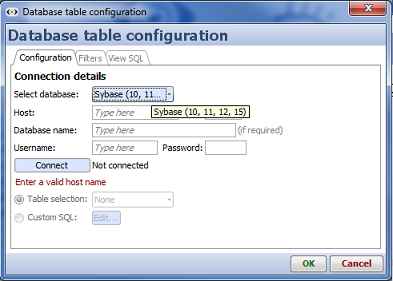 |
Column-oriented Sybase databases may not be supported by jTDS driver. In this case you may need to use JDBC (Advanced) option.
Please read SybaseIQ section below for more information.
Also try installing Omniscope on the database server directly, if possible, to rule out networking issues and to ensure you have the correct database connection settings.
Oracle 8.1.7 or similar versions may connect successfully using the same approach as for Oracle 10g [18]. However, here is a tried and tested approach with this older version of Oracle. The process is the same as for Oracle 10g but with the following changes:
You will need the Oracle JDBC driver. This is a file called “classes12.zip” and can be downloaded from Oracle (search for “Oracle JDBC driver” and look for “classes12.zip” for Oracle 8.17). It should be on the Oracle CD and/or in the installation directory.
You will need to have downloaded and installed the latest database driver Connector/J 5.1 [19] includes support for the latest JDBC functionality.
Open the Omniscope Database Connection wizard under File > Connect to database. Choose the generic "JDBC data source (advanced)" option on the first page.
Follow through the rest of the Database Connection wizard as usual, specifying a username and password, choosing a table, and optionally customising the SQL query.
You can set up a direct connection to many types/brands of database which the Database Connection dialogue does not explicitly support. Providing your database vendor offers a JDBC driver or ODBC connectivity, you should be able to use this to allow Omniscope to connect directly to your database.
If you are unable to get this to work, please post the problem on the forums [21].
If you are successful, please let us know what the settings were and where you obtained the JDBC driver from, so we can update our KnowledgeBase and consider adding explicit support for your database vendor to Omniscope.
Database connection caching is supported by Omniscope. This is mainly of use in Server installations, and should be ignored for typical desktop use as it will provide little benefit. Connection caching allows an Omniscope instance to retain and reuse database connection objects, which can improve performance. By default, desktop Omniscope installations cache 3 connections for up to 1 minute after use.
Connection caching has the following options:
| Name | Meaning | Default |
| visokio.dbcc.maxall | Maximum number of cached connections for any data source | 5 (8*) |
| visokio.dbcc.maxper | Maximum number of cached connections for each data source | 3 (5*) |
| visokio.dbcc.maxage | Maximum age of cached connections (in milliseconds) - e.g. 5 minutes is 5x60x1000 = 300000 | 60000 (300000*) |
| visokio.dbcc.debug | True/False - If true, database connection caching status and activity is printed to the console - useful for debugging server configuration | false |
* Use zero for these options to disable caching - connections will be created and discarded immediately before and after use. The numbers in brackets are the defaults used when the Omniscope process is in headless / silent mode.
These options can be configured by editing installconfig.properties in the installation folder (typically C:\Program Files\Visokio Omniscope) and adding/changing the ADDITIONAL_JVM_ARGS property. For example, the following turns on debug output and a 2 second expiry:
ADDITIONAL_JVM_ARGS=-Dvisokio.dbcc.debug=true -Dvisokio.dbcc.maxage=2000
If you are running Omniscope Server / Scheduler as a service, you instead need to edit "C:\Program Files\Visokio Omniscope\service\wrapper.conf", by adding lines such as:
wrapper.java.additional.1=-Dvisokio.dbcc.debug=true
wrapper.java.additional.2=-Dvisokio.dbcc.maxage=2000
Restart the service after making changes. Warning: at present this "wrapper.conf" file is overwritten on re-installation of Omniscope. Look in "wrapper.log" for debug output when running as a service.
The Omniscope Database Connection wizard supports ODBC data sources. Normal use of ODBC connections entails configuring an ODBC data source on each client PC requiring connectivity to the database for refresh. In Windows XP, for example, this configuration is done on the client using Control Panel, Administrative Tools, Data Sources. When distributing an .IOK file to numerous desktops within an organisation, if 'refresh from source' functionality is desired, this could require the same ODBC data source to be manually configured on every PC... potentially time-consuming for central administrators
Fortunately, it is possible to configure a "DSN-less" ODBC database connection within Omniscope. This encapsulates the full database connection parameters within the IOK file, and (providing the ODBC database driver is available) requires no administration on each client PC. This allows Omniscope to refresh data from the underlying database automaticallywhenever the .IOK file is opened on the client PCs. Omniscope can also be refreshed by users 'on-demand' using Data > Refresh from source.
Start Omniscope, and choose File > Connect to database. The Database Connection Wizard will open. Select ODBC and click Next. You will see the ODBC configuration page with the field Data Source Name.
Normally, when using a user- or system- configured ODBC data source, you would enter the name of the data source (the DSN) here. Instead, to avoid configuring the data source on all client machines,
you must enter the full DSN-less ODBC connection string. This is a line of text containing name=value definitions separated by semi-colons. Any values containing spaces are enclosed in curly braces. This describes the parameters of the ODBC data source.
For example, to connect to a sample Access database, you might use the following in the Data Source Name (DSN) field:
DRIVER={Microsoft Access Driver (*.mdb)};DBQ=C:\db1.mdb[ODBC]
DRIVER=Microsoft Access Driver (*.mdb)
UID=admin
UserCommitSync=Yes
Threads=3
SafeTransactions=0
PageTimeout=5
MaxScanRows=8
MaxBufferSize=2048
FIL=MS Access
DriverId=25
DefaultDir=C:\
DBQ=C:\db1.mdb
To convert the above to the full connection strring:
This gives you the full connection string. In this example, the string becomes:
DRIVER={Microsoft Access Driver (*.mdb)};UID=admin;UserCommitSync=Yes;Threads=3;SafeTransactions=0;PageTimeout=5;
MaxScanRows=8;MaxBufferSize=2048;FIL={MS Access};DriverId=25;DefaultDir=C:\;DBQ=C:\db1.mdb
Note: This is more verbose than absolutely necessary, the following will suffice, in this example:
DRIVER={Microsoft Access Driver (*.mdb)};DBQ=C:\db1.mdb
Finally, paste this connection string into the ODBC Data Source Name field of the Omniscope Database Connection wizard, as described above.
The following examples have not been verified:
Oracle: DRIVER={Oracle ODBCDriver};UID=Kotzwinkle;PWD=whatever;DBQ=instl_alias;DBA=W
AS400: Driver={Client Access ODBC Driver (32-bit)};System=myAS400
Excel: Driver={Microsoft Excel Driver (*.xls)};DriverId=790;Dbq=c:\somepath\mySpreadsheet.xls;DefaultDir=c:\somepath
SQL Server: Driver={SQL Server};Server=MyServerName;Database=myDatabaseName
http://www.asp101.com/articles/john/connstring/default.asp [22] (scroll down to ODBC DSN-less)
http://www.databasejournal.com/features/mssql/article.php/1491011 [24]
ODBC and JDBC are industry standard protocols for connecting directly to tables and reporting views in relational databases. It is relatively easy for you or your Database Administrator to connect Omniscope to ODBC/JDBC-compliant databases directly using the Omniscope Database Connection dialogue.
ODBC - Open Database Connectivity provides a standard software API method for using database management systems (DBMS). The designers of ODBC aimed to make it independent of programming languages, database systems, and operating systems. For more detail, see Wikipedia [25]
JDBC - Java Database Connectivity is an API for the Java programming language that defines how a client may access a database. It provides methods for querying and updating data in a database and is oriented towards relational databases. The Java Platform, Standard Edition includes the JDBC API together with an ODBC implementation of the API enabling connections to any relational database that supports ODBC. For more detail, see Wikipedia [26]
Omniscope can import the results of any SQL statement/query that returns a table using either protocol. Using ODBC it is possible to connect to tables/reporting views drawn from only one database. Using JDBC, it is possible to connect to joined reporting views/tables across multiple databases. In general, JDBC connections perform somewhat better than ODBC.
For examples of how to define and refresh both ODBC and JDBC connections, see Database Connectons [27]
Links:
[1] http://kb.visokio.com/kb/database-connections
[2] http://kb.visokio.com/kb/ms-access-odbc
[3] http://kb.visokio.com/kb/ms-sql-server
[4] http://kb.visokio.com/kb/oracle-thin-jdbc
[5] http://kb.visokio.com/kb/oracle-8.1.7
[6] http://kb.visokio.com/kb/mysql-jdbc
[7] http://kb.visokio.com/kb/generic-db
[8] http://kb.visokio.com/kb/dbcc
[9] http://kb.visokio.com/kb/db/dsn-less-odbc
[10] http://kb.visokio.com/odbc-jdbc
[11] http://kb.visokio.com/kb/data-file-formats
[12] http://msdn.microsoft.com/en-us/sqlserver/aa937724
[13] http://msdn.microsoft.com/en-us/library/ms378428.aspx
[14] http://support.microsoft.com/default.aspx?scid=kb;en-us;313100#6
[15] http://support.microsoft.com/default.aspx?scid=kb;en-us;313178
[16] http://kb.visokio.com/node/367
[17] http://kb.visokio.com/kb/proxysettings
[18] http://kb.visokio.com/node/366
[19] http://dev.mysql.com/downloads/connector/j/5.1.html
[20] http://dev.mysql.com/doc/refman/5.0/en/connector-j.html
[21] http://forums.visokio.com/
[22] http://www.asp101.com/articles/john/connstring/default.asp
[23] http://www.oracle.com/technology/docs/tech/windows/odbc/htdocs/817help/sqoraFormat_of_the_Connection_String_.htm
[24] http://www.databasejournal.com/features/mssql/article.php/1491011
[25] http://en.wikipedia.org/wiki/ODBC
[26] http://en.wikipedia.org/wiki/JDBC
[27] http://kb.visokio.com/kb/dbconnections